

Task Automation Tools can streamline your workflow, boost productivity, and save time on repetitive tasks. Whether you’re a beginner or an experienced user, these powerful tools—many of which are built into Windows or available for free—can help automate processes efficiently. In this guide, we’ll explore the best task automation tools and how to use them effectively. Let’s get started!
Understanding Task Automation
What is Task Automation?
Task automation involves using software to create processes that complete repetitive tasks without human intervention. This can range from simple actions, like opening a program at a specific time, to more complex workflows that integrate multiple applications and data sources.
Benefits of Using Task Automation Tools
- Increased Productivity: Automation allows you to focus on more critical tasks by handling mundane activities automatically.
- Efficiency: Automated tasks are performed consistently and without error, ensuring reliable results every time.
- Time-Saving: Save hours of manual work by setting up automated processes.
Built-in Windows Task Automation Tools
Task Scheduler
Introduction to Task Scheduler
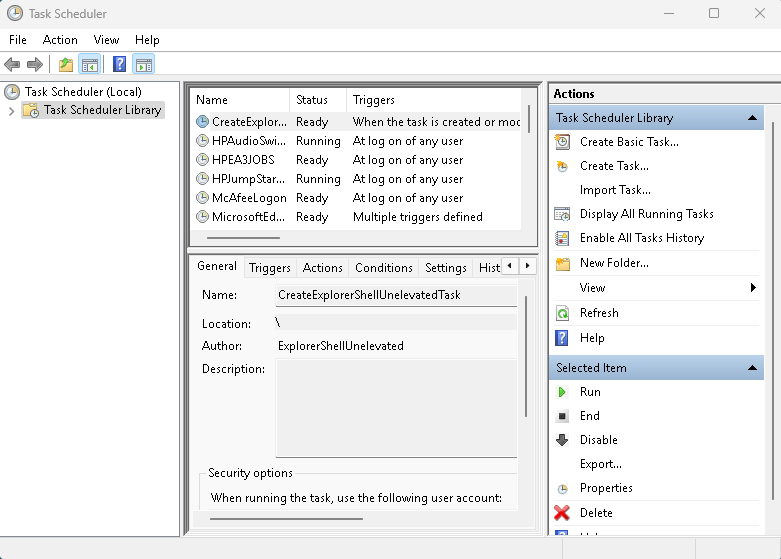
Task Scheduler is a powerful tool included in Windows that allows you to automate various tasks on your computer. You can schedule programs to run at specific times, trigger scripts, and even automate maintenance tasks.
How to Use Task Scheduler to Automate Tasks
- Open Task Scheduler:
- Press
Win + R, typetaskschd.msc, and hit Enter.
- Press
- Create a Basic Task:
- In the Task Scheduler window, click on “Create Basic Task” in the Actions pane.
- Name your task and provide a description if desired.
- Set the Trigger:
- Choose when you want the task to start (daily, weekly, monthly, etc.).
- Specify the start date and time.
- Choose the Action:
- Select “Start a program” and browse to the program or script you want to run.
- Finish:
- Review your settings and click “Finish” to create the task.
Examples of Tasks You Can Automate with Task Scheduler
- Automatically run system maintenance tools.
- Open your favorite programs at startup.
- Schedule backups at regular intervals.
Windows PowerShell
Introduction to Windows PowerShell
Windows PowerShell is a command-line shell and scripting language designed for task automation and configuration management. It’s particularly powerful for automating complex tasks and managing system configurations.
Basic Commands and Scripts for Automation
- Open PowerShell:
- Press
Win + Xand select “Windows PowerShell (Admin)”.
- Press
- Basic Commands:
- List files:
Get-ChildItem - Copy files:
Copy-Item -Path "C:\source" -Destination "C:\destination"
- List files:
- Creating a Simple Script:
- Open Notepad and type your commands:
Get-ChildItem "C:\source" | Copy-Item -Destination "C:\destination" - Save the file with a
.ps1extension (e.g.,backup.ps1). - Run the script in PowerShell by typing:
.\backup.ps1
- Open Notepad and type your commands:
Examples of Automation Scripts in PowerShell
- Automate file backups.
- Schedule system cleanups.
- Monitor and log system performance.
Free Task Automation Tools
AutoHotkey
Introduction to AutoHotkey
AutoHotkey is a free scripting language for Windows that allows you to create scripts for automating repetitive tasks. It’s highly versatile and can be used for anything from remapping keys to creating complex macros.
How to Create Simple Scripts with AutoHotkey
- Download and Install AutoHotkey:
- Visit the AutoHotkey website and download the installer.
- Install the software on your computer.
- Create a Script:
- Right-click on your desktop and select New > AutoHotkey Script.
- Name your script and open it with a text editor.
- Write Your Script:
- Type your commands. For example, to create a hotkey that opens Notepad:
^n::Run Notepad - Save the file and double-click it to run the script.
- Type your commands. For example, to create a hotkey that opens Notepad:
Examples of Automation Tasks with AutoHotkey
- Create keyboard shortcuts for frequently used applications.
- Automate text expansions for repetitive typing tasks.
- Control window positions and sizes.
Microsoft Power Automate
Introduction to Microsoft Power Automate
Microsoft Power Automate, formerly known as Microsoft Flow, is a cloud-based service that allows you to create automated workflows between your favorite apps and services.
Setting Up Workflows with Power Automate
- Sign Up:
- Go to the Microsoft Power Automate website and sign in with your Microsoft account.
- Create a New Flow:
- Click on “Create” and select “Automated flow”.
- Choose a trigger for your flow (e.g., when an email arrives in your inbox).
- Add Actions:
- Add actions that should happen in response to the trigger (e.g., save email attachments to OneDrive).
- Save and Test:
- Save your flow and test it to ensure it works as expected.
Examples of Automated Workflows
- Automatically save email attachments to cloud storage.
- Get notifications when a specific event occurs.
- Sync data between different applications.
IFTTT (If This Then That)
Introduction to IFTTT
IFTTT is a free web-based service that allows you to create chains of simple conditional statements, called applets. These applets are triggered based on changes to other web services.
How to Create Applets for Automation
- Sign Up:
- Go to the IFTTT website and sign up for a free account.
- Create a New Applet:
- Click on “Create” and select “If This”.
- Choose a service and trigger (e.g., new tweet by a specific user).
- Set the Action:
- Click on “Then That” and choose an action (e.g., send an email notification).
- Finish and Activate:
- Save and activate your applet.
Examples of IFTTT Applets for Productivity
- Automatically save tweets to a Google Sheet.
- Get an alert when a certain keyword appears in news articles.
- Sync new contacts from your phone to a CRM system.
Setting Up Your First Automation
Step-by-Step Guide to Setting Up a Simple Automation Task
- Choose the Right Tool:
- Decide which tool best suits your task (Task Scheduler, PowerShell, AutoHotkey, Power Automate, IFTTT).
- Write or Select a Script:
- Write your automation script or select a pre-made one.
- Test and Troubleshoot:
- Run your script and check for any errors.
- Make necessary adjustments until it runs smoothly.
Best Practices for Task Automation
Tips for Effective Task Automation
- Start Small: Begin with simple tasks and gradually move to more complex ones.
- Document Your Scripts: Keep a record of your scripts and what they do.
- Regular Updates: Update your scripts and automation tools regularly to avoid potential issues.
Common Pitfalls to Avoid
- Overcomplicating Tasks: Keep your automation scripts straightforward and easy to manage.
- Ignoring Security: Ensure your automated tasks do not compromise your system’s security.
- Lack of Testing: Always test your scripts thoroughly before deploying them.
AutoHotkey, Microsoft Power Automate, and IFTTT.
Task Scheduler Scripts
- Automated System Cleanup
- Purpose: Schedule a disk cleanup to run automatically every week.
- Script:
- Open Task Scheduler.
- Create a new task named “Weekly Disk Cleanup”.
- Set the trigger to weekly and choose a preferred day and time.
- Set the action to start a program and type in
cleanmgr.exe. - Save and enable the task.
- Daily Backup of Important Files
- Shutdown Computer at Night
- Purpose: Automatically shut down the computer at a specific time every night to save energy. Also see this post Create a batch file to backup files.
- Script:
- Open Task Scheduler.
- Create a new task named “Nightly Shutdown”.
- Set the trigger to daily at a specific time (e.g., 11:00 PM).
- Set the action to start a program and type in
shutdown.exewith the arguments/s /f /t 0. - Save and enable the task.
- Purpose: Automatically back up important files to an external drive every day.
- Script:
- Open Task Scheduler.
- Create a new task named “Daily Backup”.
- Set the trigger to daily at a specific time.
- Set the action to start a program and browse to a batch file, e.g.,
C:\Scripts\backup.bat. - Save and enable the task.
- Backup Batch File Content:
xcopy C:\ImportantFiles E:\Backup /E /H /C /I
PowerShell Scripts
- System Information Report
- Purpose: Generate a detailed system information report and save it to a file.
- Script:
Get-ComputerInfo | Out-File -FilePath "C:\Reports\SystemInfo.txt"
- Automated File Backup
- Purpose: Back up files from one directory to another with logging.
- Script:
$source = "C:\ImportantFiles"$destination = "E:\Backup"$log = "C:\Reports\BackupLog.txt"Copy-Item -Path $source -Destination $destination -Recurse -Verbose | Out-File -FilePath $log
- Remove Old Log Files
- Purpose: Delete log files older than 30 days from a specified directory.
- Script:
$path = "C:\Logs"$days = 30Get-ChildItem -Path $path -Filter *.log | Where-Object { $_.LastWriteTime -lt (Get-Date).AddDays(-$days) } | Remove-Item
AutoHotkey Scripts
- Open Frequently Used Programs
- Purpose: Create keyboard shortcuts to open frequently used programs.
- Script:
^n::Run Notepad^c::Run Calc^m::Run "C:\Program Files\Microsoft Office\root\Office16\OUTLOOK.EXE"
- Automate Text Expansion
- Purpose: Automatically expand short text snippets into longer phrases.
- Script:
::btw::by the way::omw::on my way::idk::I don't know
- Move and Resize Windows
- Purpose: Move and resize application windows to predefined positions on the screen.
- Script:
^!1::WinMove, ahk_class Notepad,, 0, 0, 800, 600^!2::WinMove, ahk_class Chrome_WidgetWin_1,, 800, 0, 800, 600^!3::WinMove, ahk_class Outlook,, 0, 600, 1600, 600
Microsoft Power Automate Flows
- Email Attachments to OneDrive
- Purpose: Automatically save email attachments to OneDrive.
- Flow:
- Trigger: When a new email arrives.
- Action: Extract attachments and save them to a specified OneDrive folder.
- New Tweet Notification
- Purpose: Get a notification whenever a specific user tweets.
- Flow:
- Trigger: When a new tweet is posted by a specific user.
- Action: Send a notification email with the tweet details.
- Daily Weather Report
- Purpose: Send a daily weather report email.
- Flow:
- Trigger: Recurrence (daily).
- Action: Get weather data from a weather API and send an email with the weather report.
IFTTT Applets
- Save Tweets to Google Sheets
- Purpose: Automatically save tweets that mention a specific hashtag to a Google Sheet.
- Applet:
- Trigger: New tweet with a specific hashtag.
- Action: Add a row to a Google Sheet.
- Backup Photos to Dropbox
- Purpose: Automatically back up new photos from your phone to Dropbox.
- Applet:
- Trigger: New photo added to your phone.
- Action: Save the photo to a specified Dropbox folder.
- Get Email Notifications for Calendar Events
- Purpose: Receive email notifications for upcoming Google Calendar events.
- Applet:
- Trigger: Upcoming Google Calendar event.
- Action: Send an email notification with event details.
By utilizing these scripts and automation tools, you can significantly streamline your daily tasks, improve efficiency, and ensure that repetitive tasks are handled effortlessly. Happy automating!
Task Automation Tools Conclusion
By incorporating these task automation tools into your workflow, you can save time, increase efficiency, and reduce the risk of errors. Start with the built-in Windows tools like Task Scheduler and PowerShell, and explore free options like AutoHotkey, Microsoft Power Automate, and IFTTT. With these tools, the possibilities for automation are endless. Happy automating!


