
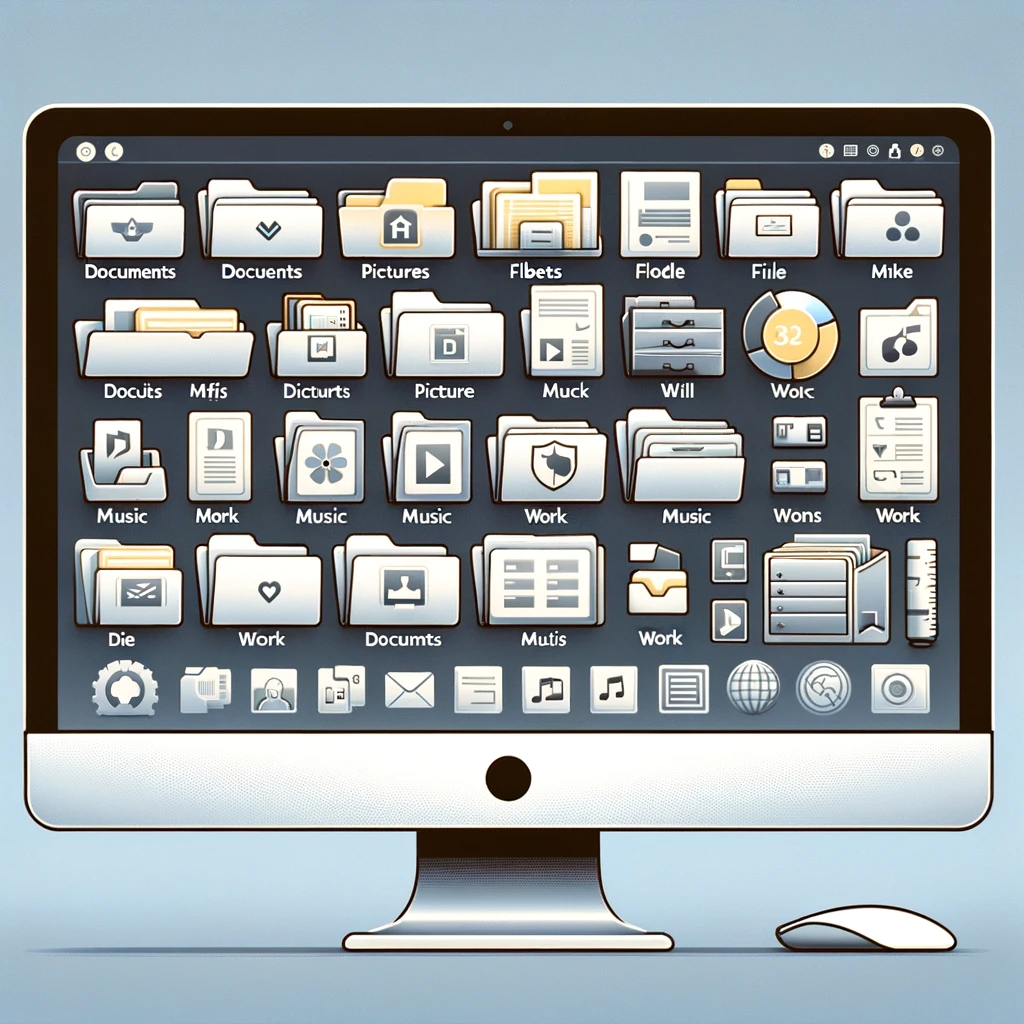

Managing your digital photo library can feel overwhelming, but with a structured approach, you can keep your collection organized and easily accessible. Follow these step-by-step instructions to create a clutter-free and systematic photo library.
Step 1: Gather All Your Photos
Before organizing, collect all your photos in one central location. This includes photos from your smartphones, tablets, cameras, external hard drives, USB drives, and memory cards. Also, download images stored in cloud storage services like Google Photos, iCloud, Dropbox, or OneDrive. Check different computer folders, email attachments, or social media downloads for additional images.
To transfer your photos, connect your phone or external device to your computer and manually copy the images or use an automatic sync service. Place all photos into a dedicated folder called “Master Photo Library” on your computer for easy access.
Step 2: Create a Logical Folder Structure
Organizing your photos into folders ensures easy navigation. Choose a structure that works best for you and remain consistent.
Option 1: Organize by Year and Month:
- Digital Photo Library
- 2023
- 01_January
- 02_February
- 03_March
- 2023
Option 2: Organize by Events or Categories:
- Digital Photo Library
- Vacations
- 2023_Hawaii_Trip
- Birthdays
- 2023_Mom_Birthday
- Vacations
Choose a format that fits your workflow and stick with it.
Step 3: Rename Files for Better Organization
Instead of generic file names like IMG_1234.jpg, rename them with a consistent structure. Use a format such as YYYY-MM-DD_Event_Location.jpg (e.g., 2023-07-15_Family_Reunion_NewYork.jpg).
To batch rename files, on Windows, select all images, right-click, and choose “Rename.”
On Mac, select images, right-click, choose “Rename X Items.”
Alternatively, use free tools like Bulk Rename Utility (Windows) or NameChanger (Mac) to rename multiple files at once.
Step 4: Add Tags and Metadata
Tags and metadata help you search for photos easily. Add keywords like location (e.g., Paris, New York), event (e.g., Wedding, Graduation), and people (e.g., Mom, John, Friends).
On Windows, right-click a photo, click Properties, go to Details, and add tags. On Mac, right-click a photo, click Get Info, and add tags. Apps like Adobe Lightroom, Apple Photos, or Google Photos allow you to tag images quickly.
Step 5: Use Photo Management Software
Photo organizing apps provide powerful tools for tagging, searching, and editing. Popular options include Google Photos, Apple Photos, and Adobe Lightroom. Google Photos offers AI-based organization and face recognition, Apple Photos syncs with Apple devices and includes smart albums, and Adobe Lightroom is best for professional photographers with advanced tagging. Choose a tool that fits your workflow and stick with it.
Step 6: Create Albums and Collections
Once your files are organized, group photos into albums for quick access. Example albums include “Family Holidays,” “Baby’s First Year,” and “Nature Photography.” Use smart albums that automatically group photos based on tags or date to save time.
Step 7: Backup Your Photos Regularly
Never risk losing your memories. Use multiple backup methods to keep photos safe. Recommended backup strategies include external hard drives (copy your entire photo library weekly or monthly), cloud storage (Google Drive, iCloud, or OneDrive), and automated backup software (Backblaze or Time Machine for Mac). Follow the 3-2-1 backup rule—3 copies, 2 different media types, 1 offsite.
Step 8: Remove Duplicates and Unwanted Photos
Cleaning up your library makes it more manageable. Delete blurry or bad shots, remove duplicates using tools like Duplicate Cleaner (Windows) or Gemini Photos (Mac), and keep only the best versions of similar photos. Regularly decluttering helps maintain an efficient library.
Step 9: Use Date and Location Features
Most smartphones and cameras store date/time and GPS data in image files. In Google Photos, click on an image to see the timeline and location. In Apple Photos, use the Places view to browse by location. If some photos lack location data, add it manually in a photo management app.
Step 10: Keep Up with Regular Maintenance
To keep your photo library organized, follow a schedule: transfer and organize new photos monthly, delete unnecessary images and update backups quarterly, and review albums, add missing metadata, and refresh storage solutions yearly. Set reminders to maintain your library regularly.
Final Thoughts: Mastering Your Digital Photo Library
By following these steps, you’ll have a well-organized, searchable, and backed-up digital photo collection. Consistency is key—stick to your naming, tagging, and folder system for long-term success.
Did you find this guide helpful? Let us know in the comments! Don’t forget to like, share, and subscribe for more tech and organization tips.

