
Duplicate files waste valuable storage space and can slow down your Windows computer. It can be part of your computer maintenance ritual. Follow these methods to find and remove duplicate files efficiently.
Method 1: Use File Explorer (Manual Method)
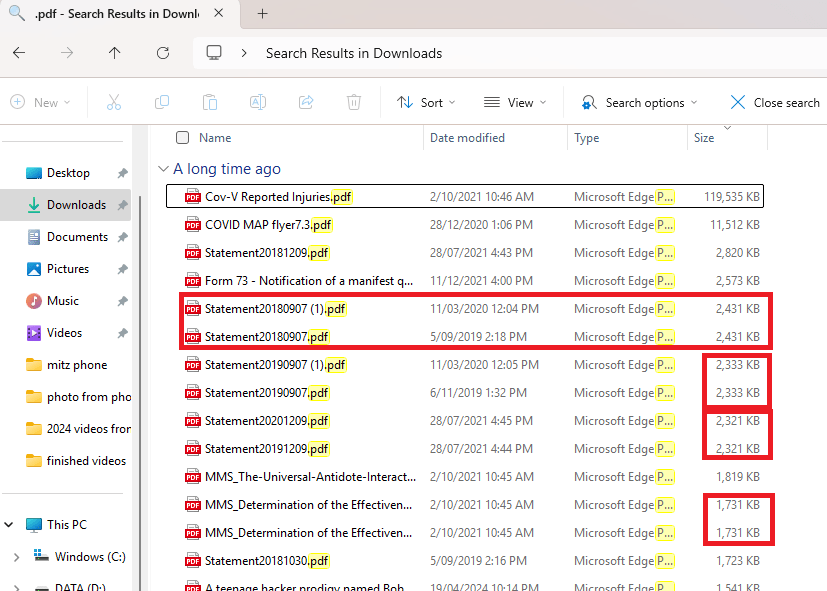
Windows File Explorer doesn’t have a built-in duplicate file finder, but you can manually search and delete duplicates.
Steps:
- Open File Explorer (Win + E).
- Go to a specific folder (like Downloads, Documents, or Pictures).
- In the Search Bar, type a common file extension like:
- *.jpg for images
- *.mp4 for videos
- *.docx for documents
- Click View → Sort by → Name to group similar files together.
- Manually compare file sizes and dates to identify duplicates.
- Right-click and delete the unwanted copies.
Pros: No additional software needed.
Cons: Time-consuming and not effective for large collections.
Method 2: Use Windows Free Command Prompt
You can find duplicate files using a simple Command Prompt script.
Steps:
- Press Win + R, type cmd, and hit Enter.
- Navigate to a specific folder by typing:
-
cd C:\Users\YourUsername\Documents
-
- Run this command to list duplicate files by name:
-
forfiles /S /C "cmd /c echo @fsize @path" | sort
-
- Identify the duplicate files and manually delete them.
Pros: No third-party software needed.
Cons: Not beginner-friendly, doesn’t work for all file types.
Method 3: Use Third-Party Software (Recommended for Large Files)
There are many duplicate file finder tools that automatically scan and remove duplicates. Here are some of the best options:
1. CCleaner (Free & Paid)
Download: https://www.ccleaner.com
Steps:
Open CCleaner and go to Tools → Duplicate Finder.
Choose file types to scan (e.g., images, videos, documents).
Click Search, then review the duplicates.
Select and delete unwanted copies.
2. Duplicate Cleaner (Best for Large Files)
Download: https://www.duplicatecleaner.com
Steps:
Install and open Duplicate Cleaner Free.
Click Scan for Duplicates and select folders to search.
View exact duplicate files and delete them in bulk.
3. Easy Duplicate Finder
Download: https://www.easyduplicatefinder.com
Steps:
Open the program and select a drive or folder to scan.
It will automatically detect duplicate files.
Click Delete Duplicates to free up space.
Method 4: Use Windows PowerShell (Advanced Users)
Windows PowerShell can search for duplicate files based on checksum (file content).
Steps:
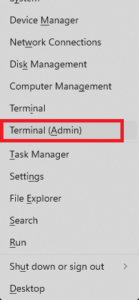
- Open PowerShell as Admin
-
(Win + X → Windows Terminal (Admin)).
-
- Navigate to the folder you want to scan:shCopyEdit
-
cd C:\Users\YourUsername\Documents
-
- Run the following command to find duplicate files:
-
Get-ChildItem -Path . -Recurse | Group-Object -Property Length | Where-Object { $_.Count -gt 1 } | Select-Object -ExpandProperty Group
-
- The output will list files with identical sizes. Manually review and delete unnecessary copies.
Pros: No extra software required, works well for advanced users.
Cons: Does not compare file content, only size.
Video Tutorial: How to find duplicate files on a Windows computer
Final Thoughts
If you only have a few duplicate files, using File Explorer or Command Prompt is fine.
For large numbers of duplicates, third-party tools like CCleaner or Duplicate Cleaner are the best options.
Regularly removing duplicate files will free up space and improve system performance. Let me know if you need more help!