
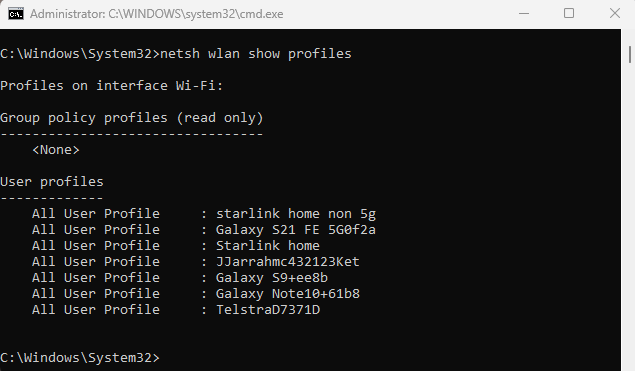

The Command Prompt (CMD) is a powerful tool for navigating and managing your system. This guide covers essential commands for file management, navigation, system diagnostics, and networking to help beginners get started efficiently.
1. Getting Started: Your Command Line Basics
Before diving into specific commands, it’s important to know how to open CMD:
How to Open Command Prompt (CMD)
- Press
Win + R, typecmd, and hit Enter. - Alternatively, search for “Command Prompt” in the Start menu.
- For administrator privileges, right-click Command Prompt and select “Run as Administrator”.
2. Navigating Your System: Moving Around Files & Folders
These commands help you move between folders and view their contents.
cd(Change Directory) – Moves between folders.- Example:
cd Documents(Moves into the “Documents” folder) cd ..(Moves up one directory level)cd \(Moves to the root directory, e.g., C:)
- Example:
dir(List Files & Folders) – Displays a list of files and folders in the current directory.- Example:
dir(Lists all files and folders in the current location)
- Example:
cls(Clear Screen) – Clears the command prompt window.
3. Essential Commands: Managing Files & Folders
Here are key commands to create, delete, move, and copy files and directories.
mkdir(Make Directory) – Creates a new folder.- Example:
mkdir MyFolder(Creates a folder named “MyFolder”)
- Example:
rmdir(Remove Directory) – Deletes a folder (only if it’s empty).- Example:
rmdir MyFolder(Deletes “MyFolder”) - To remove a folder and all its contents, use
rmdir /s MyFolder
- Example:
del(Delete a File) – Deletes a specific file.- Example:
del file.txt(Deletes “file.txt” from the current folder)
- Example:
copy(Copy a File) – Copies a file to another location.- Example:
copy file.txt C:\Backup(Copies “file.txt” to the “Backup” folder)
- Example:
xcopy(Copy Folders & Subfolders) – Copies entire directories.- Example:
xcopy MyFolder C:\Backup\MyFolder /E(Copies “MyFolder” and all its files/subfolders to “Backup”)
- Example:
move(Move or Rename a File) – Moves or renames a file.- Example:
move file.txt C:\Documents(Moves “file.txt” to “Documents”) - Example:
move oldname.txt newname.txt(Renames “oldname.txt” to “newname.txt”)
- Example:
4. Finding Files: Wildcards & find Command
Searching for files in CMD is efficient using wildcards (* and ?) or the find command.
- Wildcard Characters:
*→ Represents multiple characters.- Example:
dir *.txt(Lists all.txtfiles in the directory)
- Example:
?→ Represents a single character.- Example:
dir file?.txt(Finds “file1.txt” but not “file10.txt”)
- Example:
find(Search Inside Files) – Searches for a word inside a file.- Example:
find "error" log.txt(Searches for the word “error” inside “log.txt”)
- Example:
where(Find File Locations) – Finds files and programs available in system paths.- Example:
where notepad.exe(Shows the location of Notepad)
- Example:
dir /s /p(Search for a File in Subfolders) – Finds files across all folders.- Example:
dir /s /p report.docx(Searches for “report.docx” in the current directory and subfolders)
- Example:
5. Viewing and Displaying Text
echo– Displays a line of text or the value of a variable.- Example:
echo Hello, world!(Prints “Hello, world!” to the screen)
- Example:
type– Displays the contents of a text file in the CMD window.- Example:
type readme.txt(Shows the contents of “readme.txt”)
- Example:
6. System Information and Process Management
systeminfo– Provides detailed configuration information about your computer, including OS details, installed memory, and more.- Example:
systeminfo
- Example:
tasklist– Lists all currently running tasks and processes.- Example:
tasklist
- Example:
taskkill– Terminates a task or process by its process ID (PID) or image name.- Example:
taskkill /PID 1234(Kills the process with PID 1234)taskkill /IM notepad.exe(Kills all instances of Notepad)
- Example:
7. Network Diagnostics and Information
Network Diagnostics and Information
The Command Prompt (CMD) provides powerful tools for diagnosing and managing network connections. These commands help troubleshoot connectivity issues, monitor network activity, and configure settings efficiently.
Viewing Network Configuration
ipconfig (Display IP Configuration) The ipconfig command shows IP addresses, subnet masks, and default gateways for all network interfaces on your computer.
Example:ipconfig
Useful Parameters:
ipconfig /all– Displays detailed network information, including DHCP and DNS settings.ipconfig /release– Releases the current IP address.ipconfig /renew– Requests a new IP address from the DHCP server.ipconfig /flushdns– Clears the DNS cache to fix website loading issues.
Testing Network Connectivity
ping (Check Network Connection) The ping command tests the reachability of a website, router, or any network device.
Example:ping google.com
Useful Parameters:
ping -t google.com– Sends continuous pings (useCtrl + Cto stop).ping -n 10 google.com– Sends 10 ping requests to check stability.ping 192.168.1.1– Tests connection to a local router.
Tracing the Path of Network Packets
tracert (Trace Network Route) The tracert command shows the path packets take from your computer to a destination, helping diagnose slow connections.
Example:tracert google.com
Useful Parameters:
tracert -d google.com– Runs faster by skipping DNS resolution.tracert -h 15 google.com– Limits the number of hops to 15.
Checking Active Network Connections
netstat (View Network Activity) The netstat command displays active TCP/IP connections, network statistics, and ports in use.
Example:netstat -ano
Useful Parameters:
netstat -a– Shows all active connections and listening ports.netstat -n– Displays connections without resolving hostnames.netstat -b– Shows which programs are using network connections.- See how to Analyze Your Network Connections Using Netstat
Managing Network Connections
nslookup (Query DNS Records) The nslookup command checks domain name system (DNS) records and resolves hostnames to IP addresses.
Example:nslookup google.com
Useful Parameters:
nslookup -type=MX google.com– Checks mail server records for Google.nslookup -type=NS google.com– Lists Google’s DNS servers.
Checking Network Shares
net view (List Shared Resources) The net view command shows shared network folders and resources on your local network.
Example:net view \ComputerName
Useful Parameters:
net view– Lists all computers in the network.net use X: \Server\Share– Maps a shared folder as a network drive.
Advanced Network Troubleshooting
pathping (Diagnose Network Issues with More Detail) The pathping command is similar to tracert but provides packet loss statistics at each hop.
Example:pathping google.com
Useful Parameters:
pathping -n google.com– Runs faster by skipping name resolution.pathping -h 10 google.com– Limits hops to 10.
Using these network diagnostic commands, you can:
- Identify and fix network connection issues
- Analyze internet speed and stability
- Diagnose DNS and routing problems
- Monitor network activity and potential security risks
Try these commands the next time you experience slow connections, dropped WiFi signals, or website loading issues.
8. Controlling Execution Flow
pause– Suspends the execution of a batch file and displays “Press any key to continue…”- Example: Simply type
pausein your script or CMD to wait for user input before continuing.
- Example: Simply type
exit– Closes the Command Prompt window.- Example: Simply type
exitto quit the CMD session.
- Example: Simply type
9. Advanced File Management Techniques
CMD provides powerful tools for advanced file management, making it easier to handle large numbers of files efficiently.
- attrib (Change File Attributes) – Modify file attributes like read-only, hidden, or system file.
- Example:
attrib +h secret.txt(Hides secret.txt) - Example:
attrib -h -s important.docx(Removes hidden and system attributes from important.docx)
- Example:
- robocopy (Robust File Copy) – A more powerful alternative to xcopy for copying files and directories.
- Example:
robocopy C:\Source C:\Backup /E(Copies all files and subdirectories from Source to Backup)
- Example:
- fsutil (File System Utility) – Manage disk space, check free space, and create dummy files for testing.
- Example:
fsutil file createnew testfile.txt 10000(Creates a 10KB dummy file named testfile.txt)
- Example:
Using these advanced file management techniques in CMD can streamline your workflow and improve efficiency.
Final Tips & Tricks
- Press
Tabwhile typing a filename or directory to auto-complete it. - Use
Up&Downarrow keys to navigate through previously entered commands. - Type
helpin CMD to see a list of all available commands. - Type
command /?for detailed help on any command. - See this post 20 essential run commands in Windows.
Mastering these basic CMD commands will enhance your file management efficiency and help you navigate Windows like a pro!


