
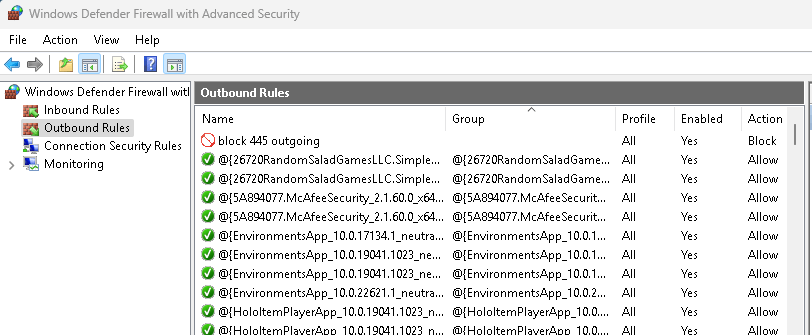

After using the netstat command to see open ports and active connections on my computer, I decided to manually block access to certain ports. Port 445 is used by the SMB (Server Message Block) protocol, which allows file sharing and remote access over a network. However, it is a common target for cyberattacks, including ransomware and unauthorized access attempts. If you do not use file sharing, it is best to disable port 445 for security.
Please note, on the computer I am using I do not file share, allow anyone to connect remotely, or use any shared devices.
Why Block External Access to Port 445?
- Port 445 is often targeted by malware, ransomware, and remote attacks, especially over the internet.
- If this port is exposed externally (outside your local network), it becomes a major security risk.
- Blocking external access helps protect your PC from remote attackers while still allowing local network functionality.
Don’t Want To Disable SMB?
- If you don’t want to disable SMB entirely (which would break file sharing), but still want to secure your system, you can use the Windows Firewall to block access to port 445 from external sources only.
In simpler terms:
You keep SMB working within your home or office network, but prevent outsiders from reaching that port over the internet.
What This Allows You To Do:
- Continue using shared folders, network drives, and local file/printer sharing inside your trusted network.
- Prevent remote attacks (like WannaCry ransomware) that target open port 445 over the internet.
- Maintain network functionality while increasing internet-facing security.
Method 1: Disable SMBv1, SMBv2, and SMBv3 via PowerShell
SMB has multiple versions, and disabling all of them ensures that port 445 is completely blocked.
Step 1: Open PowerShell as Administrator
- Press
Win + Xand select Windows PowerShell (Admin). - Run the following commands to disable SMB:
Disable SMBv1 (Old and Vulnerable)
Set-SmbServerConfiguration -EnableSMB1Protocol $false -Force
Disable SMBv2 and SMBv3
Set-SmbServerConfiguration -EnableSMB2Protocol $false -Force
Verify SMB is Disabled
Get-SmbServerConfiguration | Select EnableSMB1Protocol, EnableSMB2Protocol
If both show False, SMB is disabled, and port 445 is blocked.
Disable All 3 SMB Protocols (SMBv1, SMBv2, SMBv3)
What it does:
- Completely disables the SMB service, meaning no file or printer sharing via network.
Pros:
- Maximum security. No SMB means zero exposure on port 445.
- Recommended on systems where file sharing isn’t needed at all.
Cons:
- Breaks shared folders, mapped drives, and printer sharing.
- Affects backup software, some network apps, and even local file transfers on business networks.
Method 2: Disable Port 445 Using Windows Firewall
If you only want to block external access to port 445 without disabling SMB completely, use Windows Firewall.
Step 1: Open Windows Firewall
- Press
Win + R, typewf.msc, and press Enter. - Click Inbound Rules on the left panel.
- Click New Rule on the right panel.
Step 2: Block Port 445
- Select Port and click Next.
- Choose TCP, then enter
445in the Specific Local Ports field. Click Next. - Select Block the Connection, then click Next.
- Select Domain, Private, and Public to apply this rule to all networks. Click Next.
- Name the rule Block SMB (Port 445) and click Finish.
Step 3: Repeat for Outbound Rules
- Click Outbound Rules in Windows Firewall.
- Repeat the steps to block TCP port 445 for outgoing connections.
Block Port 445 in Windows Firewall (Inbound Only)
What it does:
- Blocks external access to SMB services (on port 445) from outside your machine.
- SMB will still work on your local network (LAN), so you can use shared folders, printers, etc.
Pros:
- Protects your PC from remote attacks (internet).
- Keeps local file sharing working.
Cons:
- Doesn’t protect against malware from inside your network.
- Might not be enough if your PC moves between trusted and untrusted networks (like laptops).
Block Port 445 Outbound in Firewall
What it does:
- Prevents your PC from reaching out to other devices on port 445.
- Stops your computer from initiating SMB connections (useful for containing malware).
Pros:
- Good for stopping your PC from accidentally connecting to malicious SMB servers.
- Useful in corporate environments where you want to prevent outbound file sharing.
Cons:
- Breaks your ability to access shared folders on other machines.
- Inbound SMB may still be open, which could be risky.
| Goal | Best Option |
|---|
| Keep file sharing on local network but block internet threats | Block port 445 inbound using Windows Firewall |
| Max security – no file sharing needed | Disable all SMB protocols |
| Prevent malware from spreading from your PC | Block port 445 outbound |
This video shows how to disable port 445 at 05:23
Method 3: Disable the LanmanServer Service (Stops SMB Completely)
Disabling the LanmanServer service will prevent Windows from offering SMB file sharing, effectively disabling port 445.
Step 1: Open Command Prompt as Administrator
- Press
Win + R, typecmd, and press Ctrl + Shift + Enter to run as Administrator.
Step 2: Disable SMB Service
Run the following command:
sc config lanmanserver start= disabled
sc stop lanmanserver
This will disable SMB and stop it from running on startup.
Step 3: Verify Service is Disabled
Run:
sc query lanmanserver
If it says STOPPED, SMB is disabled.
Method 4: Disable Port 445 Using Registry Editor
Step 1: Open Registry Editor
- Press
Win + R, typeregedit, and hit Enter. - Navigate to: sqlCopyEdit
HKEY_LOCAL_MACHINE\SYSTEM\CurrentControlSet\Services\NetBT\Parameters - Find TransportBindName and double-click it.
- Delete the existing value and leave it blank.
- Click OK and restart your computer.
Final Thoughts: Which Method is Best?
| Method | Effect | Best For |
|---|---|---|
| PowerShell (Method 1) | Disables SMB completely | Full security (Recommended) |
| Windows Firewall (Method 2) | Blocks port 445 but doesn’t disable SMB | Blocking external threats while using SMB locally |
| Disable Service (Method 3) | Stops SMB file sharing entirely | If you don’t use SMB at all |
| Registry Editor (Method 4) | Prevents SMB from binding to port 445 | Advanced users who want deeper control |
For maximum security, disable SMBv1, SMBv2, and SMBv3 using PowerShell and block port 445 in Windows Firewall.


