If you’re serious about PC protection and network security, one of the best tools already built into your system is the Windows Firewall. While it may seem intimidating at first, learning how to use Windows Firewall is easier than you think—especially when you break it down step by step.
In this guide, you’ll learn how to use Windows Firewall for beginners, how to block suspicious programs, and how to create custom rules to secure your computer from unwanted connections or potential threats.
How to Use Windows Firewall for Beginners
Windows Firewall is a security feature built into all modern versions of Windows. It acts like a gatekeeper, monitoring both inbound and outbound traffic. It blocks or allows data based on a set of predefined rules, which you can customize.
To open Windows Firewall:
- Press Win + R, type
firewall.cpl, and press Enter. - This will open the Windows Defender Firewall.
To open advanced settings:
- Press Win + R, type
wf.msc, and press Enter. - This will open the Windows Defender Firewall with Advanced Security panel.
Here, you can view existing rules and create new ones to block programs, ports, or suspicious IP addresses.
Step-by-Step Guide to use Windows Firewall
Let’s walk through the basics of using the firewall to enhance your PC protection:
- Access Firewall Settings
Go to Control Panel > System and Security > Windows Defender Firewall. - Review Allowed Apps
Click Allow an app or feature through Windows Defender Firewall to manage which apps can send or receive data. Also see how to monitor network connections through CMD. - Customize Notifications
You can adjust alert settings for public and private networks in the left menu. - Turn Windows Firewall On or Off
This should almost always stay ON—turning it off can leave your computer exposed.
Best Windows Firewall Settings for PC Protection
To get the most from Windows Firewall, consider these best practices:
- Enable notifications so you’re alerted when a new program tries to connect.
- Turn on the firewall for both public and private networks.
- Regularly check which apps are allowed through the firewall.
- Use custom firewall rules to fine-tune your protection.
Creating Inbound and Outbound Rules in Windows Firewall
Custom rules are where the real power of Windows Firewall shines.
Inbound Rule (block incoming traffic):
- Open
wf.msc - Click Inbound Rules > New Rule
- Choose Port or Program, define it, then choose Block the connection
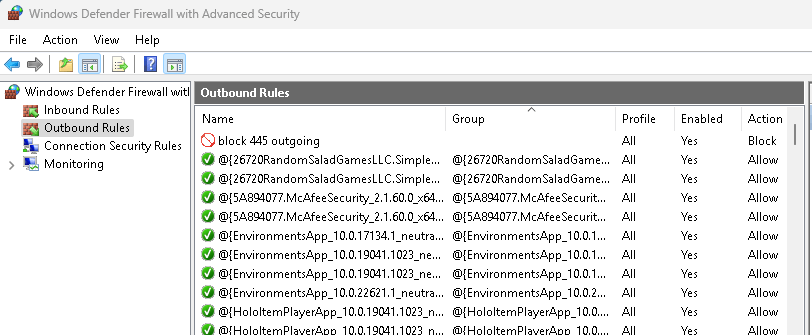
Outbound Rule (control what leaves your PC):
- Go to Outbound Rules > New Rule
- Select the app or port
- Choose to block, allow, or prompt for action
This lets you block apps from phoning home, control data leaks, and stop malware from spreading.
How to Block Programs with Windows Firewall
Sometimes you may want to block an application from accessing the internet—like a game, updater, or unnecessary background app.
Here’s how:
- Open Windows Firewall (
wf.msc) - Go to Outbound Rules > New Rule
- Choose Program
- Browse to the
.exefile of the app you want to block - Select Block the connection
- Apply it to Domain, Private, and Public profiles
Now that app will no longer send or receive data unless you remove the rule.
See A Beginner’s Guide to Using Windows Firewall for PC Protection
Windows Firewall Tutorial for Beginners
This isn’t just a tool for advanced users. In fact, Windows Firewall is ideal for non-tech users who want to improve their computer firewall configuration without installing third-party software.
It protects you against:
- Unauthorized network access
- Malicious incoming traffic
- Unwanted outbound data transmission
- Exploits targeting open ports
Improve Computer Security Using Windows Firewall
Whether you’re using your PC at home or in a small office, a properly configured firewall can significantly reduce your exposure to online threats.
Windows Firewall helps you:
- Block unused ports (like TCP 445, which hackers often target) See how to block port 445.
- Prevent remote access
- Control which programs access the internet
This gives you better control over your network, and protects your PC—even if you’re not a tech expert.
Using Windows Firewall to Block Suspicious Connections
Some connections in your system may seem odd—like unknown foreign IP addresses or processes using high-risk ports. Here’s how to stay protected:
- Use
netstat -anto view all active connections. See using netstat command to see network connections. - Identify unknown connections and take note of their ports
- Use Windows Firewall to block those ports or the processes using them
- Always double-check using Task Manager and research suspicious processes
This method is especially useful to detect malware or unauthorized background apps.
Windows Firewall Explained for Non-Tech Users
To sum it up: Windows Firewall is like a security guard standing at the doors of your computer. It controls what goes in and out, making sure that only safe and approved traffic gets through.
You don’t need to be an IT expert to use it—just a few minutes of setup can drastically improve your Windows security.
Final Thoughts
Using Windows Firewall for PC protection is one of the easiest ways to harden your system without installing anything extra. It’s free, already installed, and incredibly powerful when used properly.
By following this beginner-friendly guide, you now know how to:
- Customize firewall settings
- Create inbound and outbound rules
- Block specific apps and ports
- Identify and respond to suspicious connections
Your computer is now much more secure—well done!