
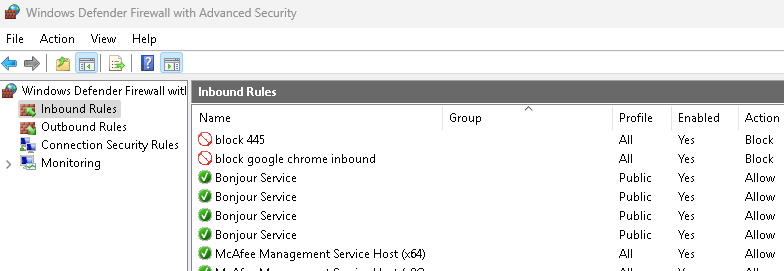

If you’re using a Windows PC, you already have one of the most powerful security tools at your fingertips — and you might not even realize it.
Windows Firewall (now called Windows Defender Firewall) comes pre-installed with every modern version of Windows, and it’s far more than just a basic tool. It acts as a digital gatekeeper, monitoring the data going in and out of your computer and deciding whether to allow or block it based on a set of rules.
Most people ignore it, or leave it at its default settings — but that’s a missed opportunity.
With just a little know-how, you can use Windows Firewall to:
- Block suspicious apps from accessing the internet
- Prevent hackers from scanning vulnerable ports
- Limit which devices or IPs can connect to your computer
- Stop malware from spreading across your network
- Protect sensitive programs and services from unwanted access
And the best part? You don’t need to install anything. It’s already built into Windows, totally free, and highly customizable.
In this guide, we’ll show you exactly how to use Windows Firewall — from basic configurations to advanced protection techniques — so you can lock down your system like a pro.
1. Block Specific Programs from Accessing the Internet
Why: Prevent unknown or unwanted applications from sending data, performing background updates, or leaking personal info.
How:
- Open
wf.msc - Go to Outbound Rules > New Rule > Program
- Browse to the
.exefile - Choose Block the connection
Example: Block a game’s telemetry or auto-updater to save bandwidth or prevent data collection.
2. Create Inbound Rules to Block Suspicious Ports
Why: Certain ports are frequently targeted by malware and ransomware to gain access or spread across local networks.
Common Vulnerable Ports to Block:
- TCP 445 – SMB (used in ransomware attacks like WannaCry) See how to block port 445.
- TCP 139, 137 – NetBIOS
- TCP 135 – Remote Procedure Call (RPC)
- UDP 1900 – SSDP (used in DDoS attacks)
- Also see this list of ports to disable.
How:
- Go to Inbound Rules > New Rule > Port
- Select the port and protocol (TCP or UDP)
- Choose Block the connection
This reduces your attack surface from network-based exploits.
3. Restrict Network Access Based on Profile (Public, Private, Domain)
Why: A program that’s safe on your home network could be risky on public Wi-Fi. Tailoring rules by profile helps you stay secure wherever you are.
How:
When creating or editing a rule, choose:
- Domain – Trusted enterprise networks
- Private – Home/work networks
- Public – Airports, cafes, hotels (least secure)
Use this to allow an app only on Private networks but block it on Public.
4. How To Use Windows Firewall – Prevent Apps from Phoning Home
Why: Some apps silently send data back to their developers or third parties. This could include telemetry, usage stats, or sensitive behavior tracking.
How:
- Use Outbound Rules > Program or block by IP/domain with third-party tools
- Monitor with Resource Monitor or
netstat -b
This helps protect your privacy, especially with freemium software or freeware. See a full tutorial on how to use netstat to monitor network connections.
5. Log Dropped Packets and Successful Connections
Why: Logging lets you see what your firewall is doing and detect suspicious activity, failed connection attempts, or apps making unexpected network requests.
How:
- In
wf.msc, go to Monitoring > Security Logging > Properties - Enable Log dropped packets
- Set log size and path (default:
%systemroot%\system32\LogFiles\Firewall\pfirewall.log)
Ideal for tracking unusual behavior or performing forensic checks after incidents.
6. Allow Only Trusted IP Addresses or Ranges
Why: When running sensitive services (like remote access or local servers), it’s safer to whitelist known IP addresses instead of opening it to the world.
How:
- In any rule, go to Scope > Remote IP address > These IP addresses
- Add trusted IPs or IP ranges (e.g., your office or static home IP)
Great for remote tools, allowing only your own devices to connect.
7. How To Use Windows Firewall – Control Software Updates
Why: You may want to pause updates, prevent beta builds, or block known unwanted software from auto-updating in the background.
How:
- Use Outbound Rules > Program to block updater
.exe - Or create rules by domain/IP if you know the update servers
Example: Block GoogleUpdate.exe or adobeupdater.exe to prevent bandwidth usage or forced updates.
8. Protect Against Unauthorized Remote Access
Why: Remote Desktop Protocol (RDP) is a common attack vector. If you’re not using it, you should block it entirely.
RDP Default Port: TCP 3389
How to Block RDP:
- Go to Inbound Rules > New Rule > Port
- Choose TCP port 3389
- Select Block the connection
If you must use RDP, restrict it by IP and enable two-factor authentication. See Securing Remote Desktop Protocol Ultimate guide.
9. Prevent Unused Apps and Services from Running
Why: Unused legacy apps or unnecessary Windows services may create security holes if left open.
How:
- Review startup and background services using Task Manager > Startup
- Use Firewall to block rarely used programs instead of uninstalling them
This reduces the risk of exploits and keeps your system lean.
10. Create Custom Rules for Port Forwarding & Firewall Exceptions
Why: If you’re running a local server, game host, or remote access tool, creating precise rules ensures only the necessary traffic is allowed in/out.
How:
- Use Inbound Rules > Port or Program
- Define specific port (e.g., TCP 25565 for Minecraft servers)
- Set scope to trusted IPs only
- Apply to correct profile (Private, Public, etc.)
Gives you full control over exposed services while maintaining security.
Final Tip On How To Use Windows Firewall:
Regularly audit your firewall rules!
- Remove rules for apps you no longer use
- Tighten overly permissive rules
- Make sure critical ports (like 445, 135, 3389) are either blocked or highly restricted


