


When it comes to protecting your Windows PC, two built-in tools often get mentioned: Windows Defender Real-Time Protection and the Windows Firewall. While they both fall under the broader umbrella of “Windows Security,” they serve very different purposes. This article breaks down what each one does, how they work, and why you should ideally keep both enabled—exploring the key differences between Windows Defender vs Firewall, how to access these Windows tools, and how they work together to protect your system.
What Is Windows Defender Real-Time Protection?
Windows Defender Real-Time Protection is part of the Windows Security suite’s antivirus system. It actively monitors your system for malicious files, software, and behaviors. The goal is to detect threats in real-time before they can cause harm.
Key Features:
- Real-time scanning of apps, files, and downloads
- Automatic blocking of detected malware and suspicious behavior
- Frequent definition updates to stay ahead of threats
- Built-in integration with Windows for low resource usage
How to Access:
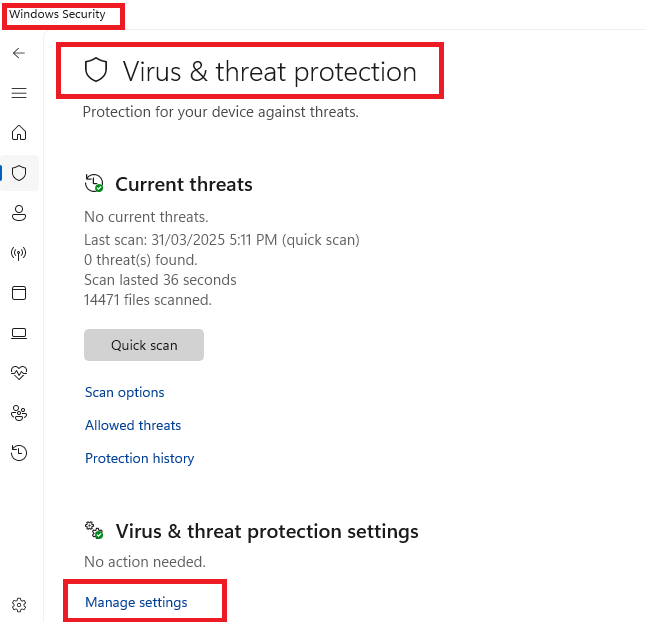
Start > Windows Security > Virus & Threat Protection > Manage Settings
From here, you can toggle Real-Time Protection ON or OFF.
Or use the Run command ( Winkey +R) and type in: windowsdefender: to quickly open the Windows Security dashboard, then press on Virus and Threat Protection.
When to Disable It:
- When installing trusted third-party antivirus software
- Temporarily for software troubleshooting (not recommended for long-term)
What Is Windows Firewall?
Windows Firewall is a network-level security tool that controls incoming and outgoing traffic on your PC. It acts like a gatekeeper, deciding which applications and services can send or receive data over the internet or local networks. See the beginners guide to Windows Firewall.
Key Features:
- Blocks unauthorized access to your system
- Allows you to create custom rules for apps and ports
- Protects against suspicious network activity
- Works with different profiles: Domain, Private, and Public networks
How to Access:
Start > Windows Security > Firewall & Network Protection
Or use the Run command: control firewall.cpl
When to Disable It:
- Rarely needed; may be turned off temporarily for trusted network troubleshooting
- Disabling leaves your system vulnerable to external threats
Windows Defender vs Firewall: Key Differences
| Feature | Real-Time Protection | Windows Firewall |
|---|---|---|
| Purpose | Detects and blocks malware | Controls network access |
| Monitors | Files, apps, downloads, behavior | Internet and LAN traffic |
| User Interaction | Mostly automatic | Customizable rules and settings |
| When Active | Runs continuously in background | Active based on network profile |
| Can Be Disabled? | Yes (not recommended) | Yes (not recommended) |
| Tool Location | Virus & threat protection | Firewall & network protection |
Should You Use Both?
Absolutely. Real-Time Protection and Firewall work best together:
- Real-Time Protection blocks threats already on your system
- Firewall blocks threats trying to enter or communicate externally
Disabling one weakens your overall security posture. If you’re using third-party tools, ensure they offer full replacement functionality.
Pro Tips:
- Use the Run command
windowsdefender:to quickly open the Windows Security dashboard - Open Firewall settings using:
control firewall.cplfor classic Control Panel viewwfw.mscfor Advanced Firewall Rules- Settings > Update & Security > Windows Security > Firewall & network protection
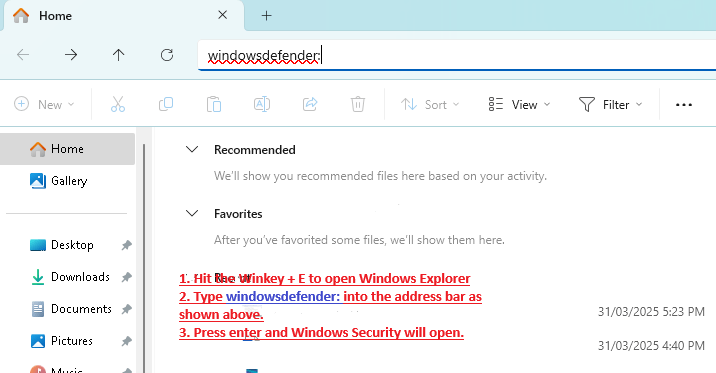
- Want to open Windows Security directly from File Explorer? Type this in the address bar:
windowsdefender:
- Regularly check and confirm that both Real-Time Protection and Firewall are enabled and updated
- Create custom inbound/outbound rules via
wfw.mscfor more advanced network control - Windows Defender for XP was a separate download from Microsoft (usually offered as a beta or final release).
Windows Defender vs Firewall – Final Thoughts
Understanding the difference between Windows Defender Real-Time Protection and Windows Firewall helps you make smarter security choices. They’re not the same — but they’re both essential. Together, they form a strong defense system that protects your files, apps, and network activity.
Keep both enabled, keep them updated, and stay safe online.

