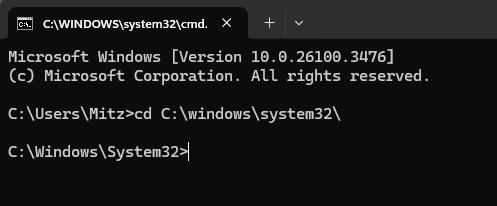

I’ve been using the Command Prompt long before Windows even existed… oops, not showing my age at all! But seriously, CMD has always been one of the most powerful tools for troubleshooting computers, and it remains just as essential today.
Whether you’re dealing with a black screen, a system that won’t boot, or a locked-out account, accessing Command Prompt (CMD) in an emergency can be a game-changer. From fixing corrupted system files to resetting passwords and even bypassing login restrictions, CMD gives you control when your Windows interface fails.
In this guide, I’ll share sneaky ways to access Command Prompt when everything else seems inaccessible—no matter if your keyboard shortcuts aren’t working, Windows won’t start, or your PC is completely unresponsive. Let’s dive in!
This guide will show you how to access Command Prompt:
1. Use the Sticky Keys Backdoor (Bypass Login Screen)
If you’re stuck at the login screen and need admin access, this method replaces the Sticky Keys function with CMD. I actually have this ready on my computer so I can access Command Prompt anytime from the login screen.
Steps to Enable the Backdoor
- Restart your PC and boot into a Windows installation USB or Recovery Mode.
- Click Repair your computer > Troubleshoot > Advanced options > Command Prompt.
- In CMD, type the following command to replace Sticky Keys with CMD:
copy c:\windows\system32\cmd.exe c:\windows\system32\sethc.exe - Restart your computer and go to the Windows login screen.
- Press Shift five times rapidly—CMD will open with administrator privileges!
Now, you can reset passwords, enable hidden accounts, or fix system issues.
2. Force Windows to Boot into Recovery Mode
If Windows won’t start, you can force it into Recovery Mode by interrupting the boot process.
Steps to Trigger Recovery Mode
- Turn on your PC and as soon as the Windows logo appears, press and hold the power button until the system shuts down.
- Repeat this 3-4 times.
- On the next boot, Windows will detect an issue and load Recovery Mode.
- Select Advanced Options > Command Prompt.
Now you have access to CMD without needing a USB drive.
3. Open CMD Using a Bootable Windows USB
If your system won’t boot, a Windows installation USB can be used to open CMD.
Steps to Access CMD from a Bootable USB
- Insert a Windows installation USB/DVD into your PC.
- Boot from the USB by pressing F12, Esc, F8, or F2 (depends on your BIOS).
- When the Windows setup screen appears, press Shift + F10.
- Command Prompt will open instantly.
This method is great for repairing Windows, resetting accounts, or fixing boot errors.
4. Boot Windows in Safe Mode with CMD
If Windows is acting strangely but still boots, you can force Safe Mode to launch CMD.
Steps to Boot into Safe Mode with CMD
- Press Win + R, type:
msconfigand press Enter. - Go to the Boot tab and check Safe Boot > Minimal.
- Restart your PC, and Command Prompt will open automatically.
This method is useful for malware removal, troubleshooting startup issues, or fixing registry problems.
5. Open CMD Through Task Manager (If Desktop is Unresponsive)
If Windows is frozen, but Task Manager still works, you can launch CMD from there.
Steps to Open CMD Using Task Manager
- Press Ctrl + Shift + Esc to open Task Manager.
- Click File > Run new task.
- Type:
cmdand check Create this task with administrative privileges. - Click OK, and CMD opens.
This method is perfect if your desktop is frozen or your Start menu isn’t responding.
6. Use Windows Recovery Partition
Most Windows PCs come with a hidden recovery partition that allows you to access troubleshooting tools.
Open CMD from the Recovery Partition to Access Command Prompt
- Restart your PC and press F8, F11, or Shift + F8 (varies by manufacturer).
- Select Advanced Startup Options.
- Go to Troubleshoot > Advanced options > Command Prompt.
This method is great if you don’t have a bootable USB but need recovery tools.
7. Modify Boot Entry to Open CMD on Startup
If Windows still works but you want CMD to launch on the next boot, modify the boot configuration.
Steps to Modify Boot Configuration for CMD Access
- Open Command Prompt as Admin and type:
bcdedit /set {current} recoveryenabled Yes - Restart your PC. Windows will force boot into Recovery Mode, where you can open CMD.
This method is useful if you expect issues on the next restart and want CMD ready.
8. Use a Linux Live USB to Access Windows Files
If all else fails, you can use Linux to edit Windows system files and force CMD to open.
Steps to Enable CMD Using Linux
- Create a Linux Live USB (Ubuntu, Kali Linux, or another distro).
- Boot into Linux and navigate to:
C:\Windows\System32 - Rename cmd.exe to utilman.exe.
- Restart into Windows, and at the login screen, click Ease of Access—CMD will open!
This trick is commonly used for password resets and file recovery.
9. How to Open Command Prompt from BIOS (Indirectly)
If your system isn’t booting properly, you can access CMD through Advanced Startup Options by following these steps:
Method 1: Using Advanced Startup (If Windows Boots)
- Press Win + I to open Settings.
- Go to Update & Security > Recovery.
- Under Advanced Startup, click Restart now.
- Once the computer restarts, select Troubleshoot > Advanced options > Command Prompt.
Method 2: If Windows Doesn’t Boot (Via BIOS/UEFI)
- Turn off your PC completely.
- Turn it back on, and immediately press the BIOS key (usually F2, F12, Delete, or Esc, depending on your manufacturer).
- In the BIOS/UEFI menu, look for Boot Options or Advanced Boot Menu.
- Enable UEFI Firmware Settings if available, then restart.
- Your system will boot into Advanced Startup Options.
- Select Troubleshoot > Advanced options > Command Prompt.
Method 3: Access Command Prompt Using USB
Using a Windows Installation USB (If PC Won’t Boot)
If your system is unresponsive, you can use a bootable Windows USB:
- Insert a Windows installation USB/DVD.
- Boot from the USB by pressing F12, F8, Esc, or your BIOS boot key.
- When the Windows setup screen appears, press Shift + F10 to open Command Prompt.
You can’t access CMD directly from BIOS, but you can use BIOS settings to boot into Windows Recovery Mode, where you can then open CMD for troubleshooting.
Access Command Prompt – Which Method is Best for your Situation?
| Issue | Best Method |
|---|---|
| Forgot Password? | Sticky Keys Backdoor, Linux Trick |
| Windows Won’t Boot? | Force Recovery Mode, Bootable USB |
| Desktop is Frozen? | Task Manager Trick |
| Malware or Corrupted Files? | Safe Mode with CMD |
| No USB, No Recovery? | Recovery Partition Method |
Each method provides a way to access CMD in an emergency, allowing you to fix problems, reset accounts, and recover data.
The NET USER command and other troubleshooting tools in CMD are powerful for fixing system errors, recovering lost passwords, and managing accounts. If your system is locked or unresponsive, one of these methods will help you regain access.
Access Command Prompt – Key Takeaways
If Windows boots, try Safe Mode, Task Manager, or the Sticky Keys backdoor.
If Windows doesn’t boot, use Recovery Mode, a bootable USB, or BIOS recovery options.
For advanced fixes, modify the boot entry or use a Linux Live USB.
If you want to change an admin password to access your computer see The NET USER command.
Have any questions or need help with a specific issue? Leave a comment below!