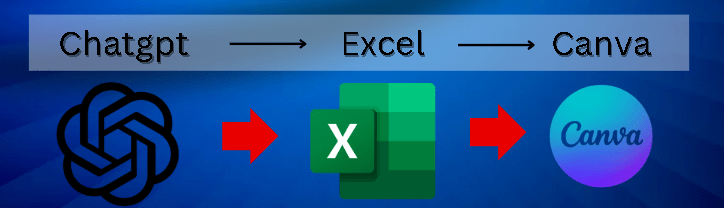

Creating scroll-stopping TikTok content doesn’t have to be a grind. In this step-by-step guide, you’ll learn how to create TikTok quizzes by generating quizzes using ChatGPT, format them into a CSV, and bulk design animated TikTok videos using Canva — all in record time. This workflow is perfect for educators, marketers, and content creators looking to scale high-quality interactive content effortlessly.
Why Use ChatGPT + Canva To Create TikTok Quizzes
By combining AI-powered quiz generation with Canva’s Bulk Create design tool, you can:
✅ Save hours of manual content creation
✅ Generate polished, consistent quizzes
✅ Add voiceovers and animations in seconds
✅ Create professional content for TikTok, Reels, and Shorts
ChatGPT handles the brains. Canva brings the beauty. Together? They’re your content creation dream team.
What You’ll Need
- A ChatGPT account (Free or Plus)
- A Canva account (Free or Pro)
- A stable internet connection
- (Optional) Canva Pro for advanced voiceover & animation tools
Step 1: Generate Your Quiz in ChatGPT
No more writing quizzes manually! Use ChatGPT to generate quiz questions and answers in seconds.
Sample Prompt:
Create a quiz about medicinal herbs with 3 multiple choice answers. Keep answers to one word.
Once the quiz is generated:
- Ask ChatGPT to convert the quiz into a table format with these columns:
- Question
- First Choice
- Second Choice
- Third Choice
- Answer
- Then ask:
Create a downloadable CSV file from this quiz table.
You’ll now have a file ready for Canva.
Step 2: Download the CSV File
Once ChatGPT provides the download link:
- Click it and save the CSV file to your computer.
- You’ll use this file to bulk-generate slides in Canva.
Step 3: Choose a Canva Quiz Template
Head over to Canva:
- Search “quiz” in the top bar
- Pick a clean, bold, animated template
- Click Customize this template
Choose a layout with space for one question and three answer choices. Keep it mobile-friendly — big text, high contrast.
Step 4: Prep the Template for Bulk Create
To allow Canva to automatically fill in the text from your CSV:
- Click on each text box in the template
- Replace text with curly-brace tags that match your CSV columns exactly:
{{Question}}{{First Choice}},{{Second Choice}},{{Third Choice}}{{Answer}}(optional if you want an answer slide)
Step 5: Import Your CSV into Canva
Now the fun begins.
- In Canva, click Apps > Bulk Create
- Select Upload CSV File
- Locate and upload your file
- Click Continue to map each column to its corresponding text placeholder
Canva will now generate one unique slide per quiz question — automatically.
Step 6: Add Voiceovers (Optional, But Powerful)
Want to boost engagement? Add voiceovers for each question.
- Select a slide
- Go to Apps > Text to Speech (Voice Over)
- Choose a voice (e.g., Rachel, Guy)
- Paste in your quiz question
- Repeat for each page
Voiceovers improve accessibility and grab attention — perfect for fast-scrolling audiences.
Step 7: Final Touches & Download
Before exporting your video:
- Add simple animations or transitions
- Check font size and spacing
- Use high-contrast colors for readability
When ready:
- Click Share > Download
- Choose MP4 video format
- Save and upload to TikTok, Reels, or YouTube Shorts!
Save Your Template for Future Quizzes
You don’t need to start from scratch every time.
- Click Share > Save as Template
- Store it in Canva Projects
- Next time, just upload a new CSV to the same design
Bonus: Watch the Full Video Tutorials
Part 1 – ChatGPT Quiz & CSV Generation
Part 2 – Importing to Canva & Bulk Creation
Follow along visually as you go — ideal for first-timers!
Final Tips On How To Create TikTok Quizzes
- Keep answers short (1–2 words) for TikTok-friendly pacing
- Use voiceovers to boost engagement
- Always preview your design before publishing
- Stay on-brand with consistent fonts & color schemes
Now you’re ready to turn AI and Canva into your personal quiz machine.
Fast. Fun. Viral-ready. Let’s make those quizzes go viral!