

Google Chrome is one of the most popular web browsers, but to ensure a safe browsing experience, you need to optimize its security settings. Here are Google Chrome security tips and tricks to protect your data, enhance privacy, and stay safe online.
1. How to Secure Google Chrome from Hackers
Hackers target browsers to steal personal information, so securing Chrome is essential. This includes using built-in security features, keeping your browser updated, and avoiding risky websites.
Steps to secure Chrome:
- Open Chrome and click the three-dot menu in the top-right corner.
- Select Settings > Privacy and Security.
- Scroll to Security and enable Enhanced Safe Browsing to get real-time protection against dangerous sites.
- Turn on Always use secure connections (HTTPS-Only mode) to force encrypted browsing and prevent insecure connections.
- Regularly check Chrome’s Safety Check feature under Settings > Privacy and Security to update security settings, detect compromised passwords, and fix security vulnerabilities.
2. How to Enable Safe Browsing in Google Chrome
Safe Browsing helps protect you from phishing, malware, and other security threats by warning you before you visit a suspicious website.
Steps to enable Safe Browsing:
- Open Chrome and go to Settings.
- Click Privacy and Security, then select Security.
- Choose Enhanced Protection for maximum security, which proactively blocks dangerous downloads and sites.
- This setting enables real-time protection against harmful downloads and risky websites, making your browsing safer.
3. How to Prevent Phishing Attacks in Google Chrome
Phishing scams trick users into revealing sensitive information like passwords and financial details. Chrome provides built-in tools to detect and block phishing attempts.
Google Chrome’s Best Security Tips – Steps to prevent phishing attacks:
- Enable Enhanced Safe Browsing in Chrome settings to receive alerts about potential phishing sites.
- Avoid clicking on unknown links in emails or messages, especially those asking for personal information.
- Use Chrome’s Password Checkup Tool to detect and warn you about compromised passwords.
- Install security extensions like uBlock Origin or Bitdefender TrafficLight, which add an extra layer of phishing protection.
4. Best Privacy Extensions for Google Chrome
Privacy extensions help block trackers, ads, and potential security threats by enhancing Chrome’s default privacy settings.
Recommended Chrome privacy extensions – Google Chrome Security Tips
- uBlock Origin – ✅ Free
- Open-source and completely free. No premium version or upsells.
- Privacy Badger – ✅ Free
- Developed by the Electronic Frontier Foundation (EFF), it’s 100% free and open-source.
- HTTPS Everywhere – ✅ Free
- Also created by the EFF. Free to use, though it’s now integrated into most modern browsers, including Chrome.
- Bitwarden – ✅ Free (with optional paid plan)
- The core password manager is free and includes secure password storage and autofill. Paid plans offer advanced features (like 2FA with YubiKey or file attachments), but basic use is totally free.
- DuckDuckGo Privacy Essentials – ✅ Free
- Completely free and offers tracker blocking and HTTPS enforcement.
To install an extension:
- Go to the Chrome Web Store.
- Search for the extension name.
- Click Add to Chrome and confirm the installation.
5. How to Stop Websites from Tracking You in Chrome
Many websites track user activity for advertising and analytics purposes. Disabling tracking features in Chrome improves privacy and prevents targeted ads.
Steps to limit website tracking:
- Open Chrome Settings > Privacy and Security.
- Click Cookies and other site data.
- Choose Block third-party cookies, which prevents cross-site tracking.
- Enable Send a “Do Not Track” request with your browsing traffic, though not all sites honor this request.
6. How to Manage Passwords Securely in Chrome
Using Chrome’s built-in password manager can improve security by automatically generating and storing strong passwords.
Steps to manage passwords securely:
- Open Chrome Settings > Autofill > Passwords.
- Enable Offer to save passwords so Chrome can securely store login credentials.
- Turn on Auto Sign-in to quickly log in to frequently visited sites.
- Click Check passwords to see if any stored credentials have been compromised in data breaches.
7. How to Block Pop-Ups and Malware in Chrome
Blocking pop-ups helps prevent malware infections and unwanted redirects that can compromise security.
Steps to block pop-ups:
- Open Chrome Settings > Privacy and Security.
- Click Site Settings.
- Scroll to Pop-ups and redirects and select Don’t allow sites to send pop-ups.
- Also, go to Security and enable Safe Browsing to prevent harmful downloads and phishing attempts.
8. How to Use Google Chrome’s Built-In Security Features
Chrome includes several built-in security features that enhance online safety.
Key security features:
- Chrome Safety Check – Scans for compromised passwords, harmful extensions, and outdated security settings.
- Sandboxing – Isolates web pages to prevent malware spread.
- Site Isolation – Improves security by keeping each website in its own process to prevent data leaks.
To use Safety Check:
- Open Chrome Settings > Privacy and Security.
- Click Safety Check and follow the recommendations for improved security.
Summary: Why These Features Boost Your Security
| Feature | What It Does | Why It Helps You |
|---|---|---|
| Sandboxing | Isolates tabs from system and each other | Stops malware from spreading |
| Site Isolation | Separates websites into unique processes | Protects sensitive data from leaks |
9. How to Remove Unwanted Extensions in Chrome
Extensions can be useful, but some may slow down Chrome or introduce security risks.
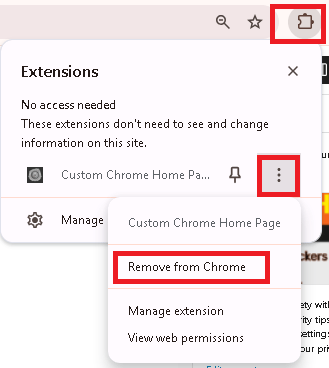
Steps to remove extensions:
- Click the three-dot menu in the top-right corner.
- Select More tools > Extensions.
- Review all installed extensions and look for any that you no longer use.
- Click Remove next to the extension you want to delete.
- Or click on the Extension icon in the top right corner as shown below.
10. How to Manage Site Permissions in Google Chrome
Chrome allows users to control what permissions websites can access, such as camera, microphone, and location data.
Steps to manage site permissions:
- Open Chrome Settings > Privacy and Security.
- Click Site Settings.
- Adjust permissions for camera, microphone, location, and notifications.
- Set any unwanted permissions to Blocked to enhance privacy.
11. How to Browse Safely Using Chrome’s Security Settings
To maintain online security, always:
- Keep Google Chrome updated to get the latest security patches.
- Use a secure password manager to store credentials safely.
- Enable two-factor authentication (2FA) for your Google account and other critical logins.
- Be cautious with free downloads and unknown websites, as they can contain malware or phishing links.
12. How to Enhance Google Chrome Security Tips Using Windows Firewall
Windows Firewall acts as a protective barrier between your computer and potentially harmful online threats. By configuring Windows Firewall settings, you can add an extra layer of security to Google Chrome, blocking unauthorized network activity and improving browsing safety.
Steps to Configure Windows Firewall for Google Chrome Security
1. Open Windows Firewall Settings:
Press Win + R, type firewall.cpl, and hit Enter.
2. Create a New Outbound Rule:
Click Advanced settings on the left panel.
In the Windows Defender Firewall window, select Outbound Rules from the left panel.
Click New Rule… on the right side.
3. Block Suspicious Connections:
Select Program and click Next.
Choose This program path and browse to Chrome’s installation location: C:\Program Files\Google\Chrome\Application\chrome.exe
Click Next and select Block the connection.
4. Apply the Rule to All Network Profiles:
Select Domain, Private, and Public to ensure Chrome is protected in all network environments.
Click Next and give your rule a recognizable name (e.g., “Secure Chrome Firewall Rule”).
5. Allow Secure Traffic Only (Optional):
Instead of blocking all connections, you can choose Allow the connection if it is secure to ensure that Chrome only uses encrypted, trusted connections.
Why This Helps Secure Google Chrome
1. Prevents malicious network activity that might exploit Chrome vulnerabilities.
2. Blocks untrusted or unauthorized external connections that attempt to communicate with Chrome.
3. Ensures secure HTTPS browsing by restricting non-secure network traffic.
- Bonus Tip: You can also configure Inbound Rules to block unauthorized remote access attempts through Chrome.
By integrating Windows Firewall protection with the built-in Chrome security settings, you can greatly reduce the risk of malware infections, phishing attacks, and network intrusions while browsing online.
13. Check Out More Quickly and Securely with Autofill (New Feature – August 2024)
Google Chrome now lets you verify your identity with biometrics when using autofill for payment — making checkout both faster and more secure.
Instead of manually entering your card’s security code every time, you can now use your fingerprint, face scan, or screen lock PIN to authorize purchases.
Steps to Enable Secure Autofill Checkout:
- Open Chrome Settings
- Go to Autofill and passwords > Payment methods
- Toggle on Manually verify every time you pay using autofill
- Next time you check out, you’ll be prompted to use your device’s biometric security instead of entering the CVV
This feature adds an extra layer of protection for online payments and reduces the risk of someone using your stored payment info without your consent.
Final Thoughts On Google Chrome Security Tips
By following these Google Chrome security tips and tricks, you can significantly improve your online safety. Chrome offers several built-in security features, but additional steps such as using privacy extensions, managing site permissions, and keeping your browser updated will ensure you stay protected from online threats.
Regularly review your Chrome security settings to stay ahead of hackers and prevent phishing attacks. Let us know in the comments if you use any additional security methods!
For more advanced tweaks, check out how to use Chrome Flags to boost security.
Video


