If your Windows PC keeps crashing, freezing, or showing the dreaded Blue Screen of Death (BSOD), don’t panic. Before paying for costly repair tools, try these two powerful built-in solutions: SFC and DISM.
In this step-by-step guide, you’ll learn exactly how to use SFC and DISM to fix corrupted Windows system files and get your computer running smoothly again.
Why Your PC Might Be Crashing or Freezing
Windows can glitch or crash due to:
- Failed or incomplete updates
- Corrupted system files
- Missing or damaged drivers
- Malware or third-party conflicts
- It can even help when a computer has a black screen.
Before reinstalling Windows from scratch, it’s worth running these built-in repair tools.
What is SFC (System File Checker)?
SFC stands for System File Checker. It’s a Windows command-line utility that scans for missing or corrupted system files and replaces them with the correct versions from your local Windows cache.
If you need more information about the SFC see this post.
When to Use SFC
- After Windows updates fail or roll back
- If your taskbar or start menu disappears
- When you experience frequent crashes or black screens
- If you see error messages or BSODs
- Fix Windows Updates
How to Run SFC to Repair System Files
Step 1: Open Command Prompt as Administrator
- Press
Win + Rto open the Run dialog. - Type
cmd. - Press
Ctrl + Shift + Enterto run Command Prompt as an administrator.
Step 2: Run the SFC Scan
In the Command Prompt, type:
sfc /scannow
- Make sure there’s a space after
sfc. - Press
Enterand let Windows scan your protected system files.
The scan may take 10 to 20 minutes depending on your system.
What Happens During the SFC Scan
SFC will check the integrity of your system files. If it finds any corrupted or missing files, it will attempt to replace them automatically.
Possible SFC Results and What They Mean
When the scan finishes, you’ll see one of three messages:
1. Corrupt Files Found and Repaired
Windows Resource Protection found corrupt files and successfully repaired them.
Restart your PC. Your problems may be solved.
2. No Integrity Violations
Windows Resource Protection did not find any integrity violations.
Your system files are fine. Your issues might be related to drivers or applications.
3. Corrupt Files Found but Not Fixed
Windows Resource Protection found corrupt files but was unable to fix some of them.
Run the DISM tool to fix deeper system image issues.
How to Check the SFC Log File
SFC logs details in the CBS.log file located at:
C:\Windows\Logs\CBS\CBS.log
Open it in Notepad to see exactly what was scanned and repaired. You can also upload this file to a tool like ChatGPT to help interpret the results.
Running DISM to Fix Deeper System Issues
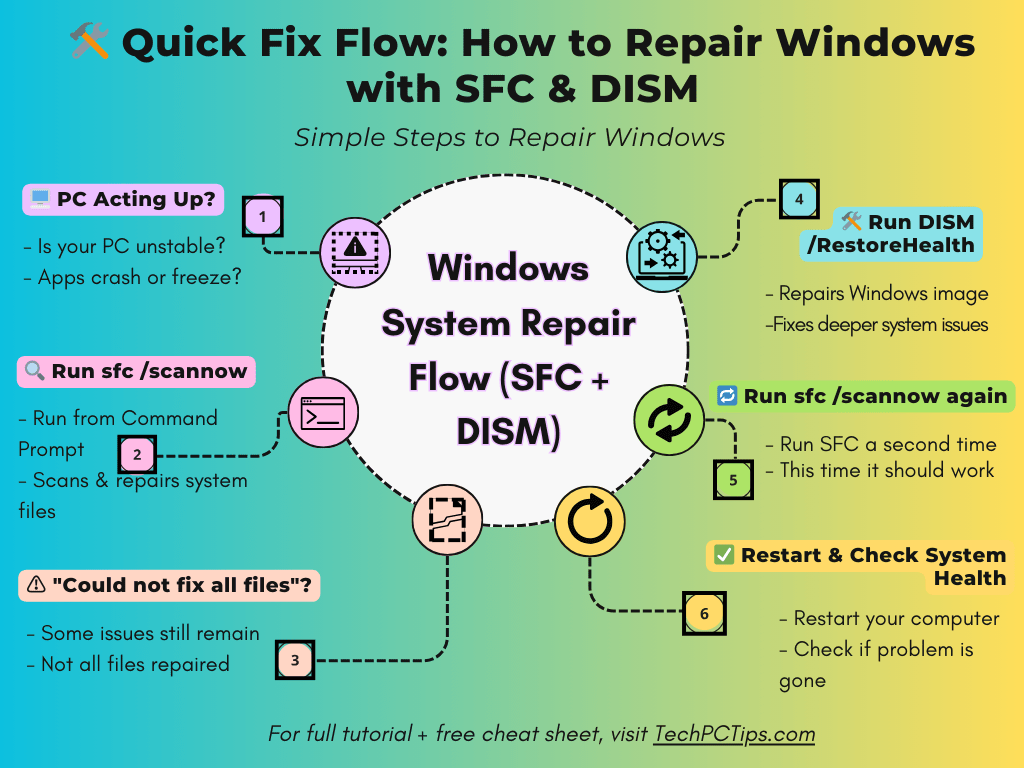
If SFC couldn’t fix everything, use DISM. DISM stands for Deployment Imaging Service and Management Tool. It repairs the Windows image itself, downloading clean files from Microsoft if needed.
How to Run DISM
In the same elevated Command Prompt, type:
DISM /Online /Cleanup-Image /RestoreHealth
Press Enter and let the process complete. It can take anywhere from 10 to 30 minutes.
Run SFC Again After Using DISM
Once DISM finishes, run:
sfc /scannow
again to ensure all corrupted files are fully repaired.
Check out this post about The top 10 command line tools for repair and maintenance.
Optional: Scan Without Repairing
If you’d like to scan first without making any changes, use:
sfc /verifyonly
For DISM, you can check the image health with:
DISM /Online /Cleanup-Image /CheckHealth
Summary: Keep Your PC Healthy for Free
SFC and DISM are essential free tools for fixing:
- Failed Windows updates
- Missing taskbars or start menus
- Random crashes and blue screens
- General sluggishness and system instability
Always restart your PC after running these repairs.
Download a handy cheat sheet
The video offers a free PDF cheat sheet with all these commands in one place.
Makes you look like a pro without memorizing long cryptic commands.
Share Your Experience
Have you used SFC or DISM to rescue your PC? Share your story in the comments. It might help someone else avoid a full reinstall.