

Learning how to shut down Windows properly is a basic skill—but one that becomes powerful when you understand every available method. Whether you want to shut down fast, automate the process, or handle unresponsive systems, Windows offers a variety of tools to meet your needs.
This post covers all the different ways you can shut down or restart a Windows computer, including standard menu options, keyboard shortcuts, command-line tools, and automation. These techniques work on Windows 10, Windows 11, and earlier versions.
1. Shut Down Using the Start Menu
The Start Menu provides the most familiar method of shutting down a Windows PC. It’s straightforward, reliable, and built into every version of Windows.
Steps:
- Click the Start button in the lower-left corner.
- Select the Power icon.
- Choose Shut down from the menu.
This method is ideal for everyday use. It gives Windows time to close applications safely and avoids potential data loss. Most users rely on this method because it’s simple, accessible, and doesn’t require any extra steps or shortcuts.
Knowing how to shut down Windows through the Start Menu is fundamental, especially for casual users, families, or anyone who prefers using the graphical interface.
2. Using Keyboard Shortcuts to Shut Down Windows
Keyboard shortcuts offer a quick and efficient way to shut down a Windows PC, especially if your mouse isn’t working or your system is lagging.
Steps:
- Press Alt + F4 while on the desktop to open the Shut Down Windows dialog.
- Use Ctrl + Alt + Del, then click the power icon in the bottom-right corner.
- Press Win + X, followed by U, then U again to shut down.
These shortcuts are perfect for power users, IT professionals, or anyone who prefers fast, no-mouse methods. They also come in handy when troubleshooting or working with limited system resources.
If you’re learning how to shut down Windows in different ways, keyboard shortcuts are a must-know option for speed and convenience.
3. Shut Down Windows with Alt + F4 on the Desktop
The Alt + F4 shortcut is traditionally used to close windows, but when no apps are open and you’re on the desktop, it brings up the system shutdown menu.
Steps:
- Minimize or close all open windows until you’re on the desktop.
- Press Alt + F4.
- Use the dropdown menu to select Shut down.
- Press Enter.
This method is fast and provides access to other power options like Restart, Sleep, or Hibernate. It’s useful when you want more control than a quick shutdown but still want to avoid navigating through menus.
Using Alt + F4 to shut down Windows is helpful for users who prefer keyboard control or are operating in kiosk or minimal-interaction environments.
4. Using Command Prompt or PowerShell to Shut Down Windows
Command-line tools give you precise control over how Windows shuts down. These are especially useful for scripts, automation, or when managing remote systems.
Steps:
- Open Command Prompt or PowerShell.
- Type the following command and press Enter:
shutdown /s /f /t 0
This shuts down your computer immediately. The /s flag tells Windows to shut down, /f forces apps to close, and /t 0 sets the delay to zero seconds.
This method is ideal for IT administrators, developers, or advanced users who want complete control over the shutdown process. If you’re learning how to shut down Windows through the command line, this is the fundamental command to know.
5. Use the Run Dialog to Shut Down Windows
The Run dialog provides another fast way to shut down Windows without opening a command window or using the mouse extensively.
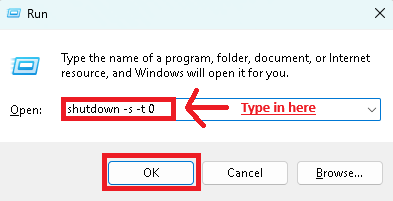
Steps:
- Press Win + R to open the Run dialog.
- Type:
shutdown -s -t 0 - Press Enter.
The system will shut down immediately with no warning. It’s a clean, quick method for users who are already comfortable using the Run dialog.
Knowing how to shut down Windows via the Run command is especially helpful for IT professionals or users who prefer keyboard-driven workflows.
6. Create a Shutdown Icon on Your Desktop
Creating a desktop shortcut allows you to shut down your PC with a single click. This is one of the most convenient and customizable methods.
Steps:
- Right-click on the desktop and choose New > Shortcut.
- In the location field, enter:
shutdown.exe -s -t 0 - Click Next, then give your shortcut a name like “Shutdown PC.”
- (Optional) Right-click the new icon, choose Properties > Change Icon, and select a power icon.
Once set up, clicking the icon will shut down your PC instantly.
This method is great for users who want a visual, one-click solution. It’s especially helpful for family members, less tech-savvy users, or anyone looking for convenience. It also fits well in custom setups like home theater PCs or kiosks.\
7. Shut Down Windows Using Task Scheduler
If you want your PC to shut down at a specific time each day, Task Scheduler lets you automate the process.
Steps:
- Open Task Scheduler.
- Click Create Basic Task.
- Give the task a name like “Nightly Shutdown.”
- Set the trigger (e.g., daily at 11:00 PM).
- Choose Start a program as the action.
- Type
shutdown.exein the Program/script field. - In the Add arguments box, enter:
-s -f -t 0
Task Scheduler will now shut down your PC at the set time, automatically.
This method is useful for anyone who leaves their computer running overnight or wants to reduce power consumption. It’s popular in office environments, shared computers, or for users who forget to shut down manually. Automating how to shut down Windows is a powerful feature that helps with consistency and energy efficiency.
8. Shut Down Windows Remotely
You can shut down another PC on your network using remote commands, as long as the proper settings and permissions are enabled.
Steps:
- On the remote PC, ensure that remote shutdowns are allowed (via Group Policy or advanced system settings).
- On your local machine, open Command Prompt with administrator rights.
- Type:
shutdown /m \\ComputerName /s /f /t 0ReplaceComputerNamewith the name of the target machine.
This command tells Windows to shut down the specified computer immediately and force all apps to close.
Remote shutdown is ideal for IT admins, managed networks, or power users with multiple systems. It’s a key method when learning how to shut down Windows across multiple devices, especially in professional environments.
9. Shut Down Windows from the Lock Screen or Login Screen
Windows allows you to shut down even when you aren’t logged into an account.
Steps:
- At the lock or login screen, look for the Power icon in the bottom-right corner.
- Click the icon and choose Shut down.
This method is simple but essential. It allows you to turn off a computer that’s locked or left idle, without needing the account password.
It’s commonly used in shared households or classrooms where devices may be left unattended. Understanding how to shut down Windows from the lock screen ensures that users can safely power off a device without full access.
10. Force Shutdown (Last Resort)
When your system is completely unresponsive, a forced shutdown may be necessary. This should only be used when other methods fail.
Steps:
- Press and hold the physical power button on your computer for 5–10 seconds.
- Wait for the screen to go black and the machine to power off.
Forced shutdowns can cause data loss or corruption if files are open, so use this method only in emergencies.
This method is important to know for hardware troubleshooting, frozen systems, or critical failures. While not ideal, it’s still part of understanding every way you can shut down Windows in a pinch.
11. Use a Shutdown Timer
You can delay shutdown by setting a timer. This is especially useful for letting downloads or backups complete before powering off.
Steps:
- Open Command Prompt or Run dialog.
- Enter:
shutdown -s -t 3600(3600 is the number of seconds until shutdown—1 hour.)
Windows will now shut down after the specified time unless canceled.
This is a great solution for users who work on long-running tasks or want to schedule shutdown without using Task Scheduler. It’s a helpful trick for anyone learning how to shut down Windows with more flexibility and planning.
Shutdown Methods That Work on Windows XP:
- Start Menu Shutdown
- Works exactly the same: Start > Turn Off Computer > Shut Down
- Alt + F4 on Desktop
- Works the same; brings up the shutdown dialog when you’re on the desktop.
- Ctrl + Alt + Del → Shut Down
- On XP, this opens the Windows Security screen, where you can click “Shut Down.”
- Run Dialog with
shutdown -s -t 0- Works, but the
shutdowncommand must be available (it is in XP Pro, may require setup in XP Home).
- Works, but the
- Command Prompt (
shutdown /s /f /t 0)- Works in Windows XP Professional. XP Home may require manual enabling or copying the shutdown.exe utility.
- Desktop Shortcut (
shutdown.exe -s -t 0)- Works on both XP Pro and Home if
shutdown.exeis available (usually located inC:\Windows\System32).
- Works on both XP Pro and Home if
- Task Scheduler Shutdown
- Works. You can create a task to run
shutdown.exewith the correct arguments.
- Works. You can create a task to run
- Force Shutdown (Power Button)
- As with any system, holding the power button forces a shutdown.
- Shutdown Timer (
shutdown -s -t 3600)- Works the same as in newer versions.
How to Shut Down Windows – Conclusion
Now that you’ve seen every method for how to shut down Windows, you have a full toolkit for handling power management on your PC. Whether you’re a casual user looking for a quick desktop icon, an IT pro managing multiple systems remotely, or a student who forgets to shut down at night, there’s a method here for you.
Understanding and choosing the right shutdown method saves time, protects your data, and fits your specific workflow. The more control you have over how and when your PC shuts down, the more efficient and reliable your system becomes.
If your computer won’t turn on after shutting down, you might be dealing with a hardware or power issue—here’s how to troubleshoot a PC that won’t start but has a flashing power light.


