

Backing up your computer files and data is a critical practice that ensures the safety and security of your important information. Data loss can occur due to various reasons, such as hardware failures, software issues, accidental deletions, or cyber-attacks. By having a reliable backup strategy, you can restore your data quickly and minimize downtime. Here’s a guide on the best tools and methods to back up your computer files and data.
To backup your computer files, it is a very simple task to perform and is an important part of computer maintenance. . It is just a matter of copying your files and pasting them into a folder. Of course Windows comes with its own inbuilt backup software, however it is just as easy to do it manually. Often you do not need to back up everything, just backup important files.
What to Use to Backup Your Computer Files and Data
1. External Hard Drives
Why Use External Hard Drives?
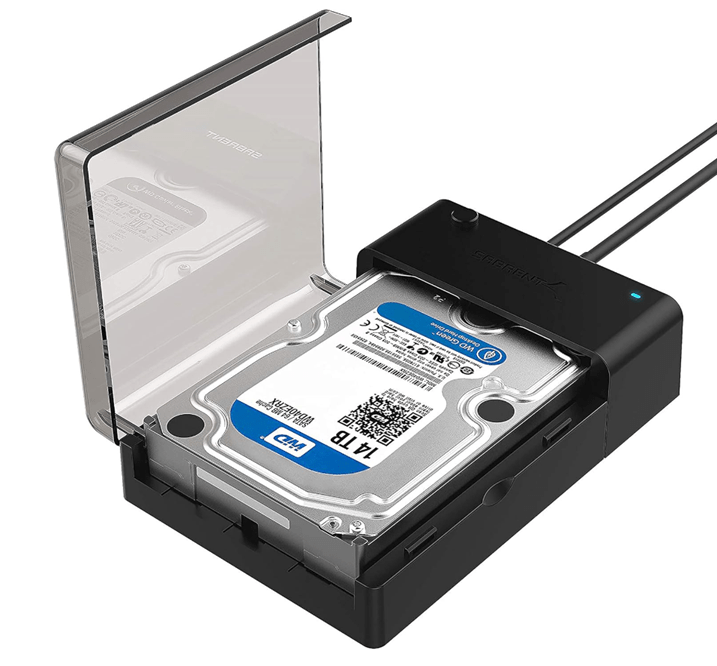
This is my favourite device to use for file backup. You can fit so much data on an external hard drive, and then you can take it anywhere and easily plug it in. Find out more about an External hard drive.
- Capacity: They offer large storage capacities, suitable for backing up entire systems.
- Portability: Easily transportable, allowing you to store backups offsite for added security.
- Cost-Effective: Generally cheaper per gigabyte compared to other storage solutions.
How to Use:
- Connect the External Drive: Plug the drive into a USB port on your computer.
- Use Backup Software: Utilize built-in tools like Windows Backup and Restore or Time Machine for Mac, or third-party software like Acronis True Image or EaseUS Todo Backup.
- Schedule Regular Backups: Set up automatic backups to ensure your data is regularly updated.
2. Cloud Storage Services
Why Use Cloud Storage?
- Accessibility: Access your backups from any device with an internet connection.
- Security: Providers offer encryption and secure data centers.
- Scalability: Easily increase storage space as needed.
Popular Cloud Storage Services:
- Google Drive: Offers 15GB of free storage, with paid plans for more space.
- Dropbox: Known for its ease of use and integration with various apps.
- OneDrive: Integrated with Windows and offers 5GB of free storage.
- iCloud: Ideal for Apple users, offering 5GB of free storage.
How to Use:
- Sign Up: Create an account with a cloud storage provider.
- Install the App: Download and install the desktop or mobile app.
- Upload Files: Drag and drop files into the cloud storage folder or use the automatic backup feature.
3. Network Attached Storage (NAS)
Why Use NAS?
- Centralized Backup: Store backups for multiple devices in one place.
- Remote Access: Access your backups over the network from anywhere.
- Scalability: Easily add more drives to increase storage capacity.
How to Use:
- Set Up the NAS Device: Connect the NAS to your router and configure it using the provided software.
- Install Backup Software: Use the NAS manufacturer’s backup software or third-party tools like Synology Hyper Backup or QNAP NetBak Replicator.
- Schedule Backups: Set up regular backups to ensure your data is consistently protected.
4. Backup Software Solutions
Why Use Backup Software?
- Automation: Automatically schedule backups, reducing manual effort.
- Comprehensive Features: Options for full, incremental, and differential backups.
- Ease of Use: User-friendly interfaces and step-by-step guides.
Popular Backup Software:
- Acronis True Image: Offers full image backups, cloud storage, and ransomware protection.
- EaseUS Todo Backup: Provides disk imaging, file backup, and system cloning.
- Macrium Reflect: Known for its reliability and comprehensive backup options.
How to Use:
- Install the Software: Download and install the backup software of your choice.
- Configure Backup Settings: Choose what to back up, where to store the backups, and when to run them.
- Monitor Backups: Regularly check the status of your backups to ensure they are completed successfully.
5. Online Backup Services
There are plenty of free storage places on the internet but they are usually limited to 2GB free. You could store a backup of your backup (LOL) on the internet as it is usually very safe there. I like to use Live Drive for my online storage.
Why Use Online Backup Services?
- Offsite Storage: Protects your data from local disasters like fire or theft.
- Automatic Backups: Continuous backup of your files in real-time.
- Data Recovery: Easily restore files from the online backup service.
Popular Online Backup Services:
- Backblaze: Offers unlimited storage for a flat monthly fee.
- Carbonite: Provides automatic backup with various plans to suit different needs.
- iDrive: Combines cloud storage and online backup with a user-friendly interface.
How to Use:
- Sign Up: Create an account with an online backup provider.
- Install the Backup Client: Download and install the software on your computer.
- Set Up Backup Plan: Configure which files and folders to back up and schedule automatic backups.
6. Burn your files and data to a CD or DVD
This is how most people used to store their backup files as discs are very cheap to buy and you can have multiple backups. You can also use a re-writable cd or dvd, and therefore reuse the disc at a later date.
7. Use a USB flash drive to temporarily store your data
These devices are very small and cute, therefore making them easy to loose or even wash in the washing machine. You can store up to around 8 gb of data on one flash drive. Smaller USB flash drives are only good to transfer small files from one computer to another.
8. Print your data to hard copy
If you just wanted to keep a backup of your email addresses, you could print them out and store in a safe place. There is always the chance that a USB or external hard drive may malfunction and loose your data.
Choosing the right backup solution depends on your specific needs, such as the amount of data, desired level of security, and budget. By using a combination of external hard drives, cloud storage, NAS, backup software, and online backup services, you can create a robust backup strategy that ensures the safety and accessibility of your important data.
Best Practices for Data Backup
Schedule Regular Backups: Set a schedule for automatic backups to ensure your data is consistently protected. Depending on how often you update or add new data, scheduling weekly or even daily backups can significantly reduce the risk of data loss. Automated backup solutions, such as Windows Backup and Restore or macOS Time Machine, can help streamline this process, ensuring your data is always up-to-date without requiring manual intervention.
Verify Backup Integrity: Periodically checking your backups to ensure they are complete and uncorrupted is crucial. This step confirms that you can successfully restore your data when needed. Tools like checksum verification or backup verification features available in many backup software programs can help you ensure that your backups are reliable and intact.
Use Multiple Backup Solutions: Combining both external hard drives and cloud services provides a layered approach to data protection, increasing the chances of data recovery in various scenarios. External hard drives offer quick access to backups, while cloud services like Google Drive, Dropbox, or iCloud provide off-site storage that can protect your data against local disasters like fire or theft.
Encrypt Sensitive Data: For additional security, encrypt your backups, especially if they contain sensitive or personal information. This ensures that even if your backup media is lost or stolen, your data remains protected. Many backup solutions offer built-in encryption features, or you can use dedicated encryption tools like VeraCrypt to secure your data before backing it up.
Rotate Backup Media: Regularly rotating your backup media, such as using multiple external hard drives in rotation, can further enhance your data protection strategy. This practice reduces the wear and tear on individual drives and ensures you have multiple points of recovery.
Keep a Backup Off-Site: Store a copy of your backup off-site or in a secure location away from your primary computer. This adds an extra layer of protection against physical threats like theft, fire, or natural disasters. Using a combination of local and remote backups ensures your data’s safety under various circumstances.
By following these best practices, you can ensure that your data is secure and recoverable, even in the face of severe virus infections or other unexpected data loss events. Regular backups are an essential component of a robust computer security strategy, providing peace of mind and a safeguard against potential data loss.
The absolute best way to backup your computer files is to use an external hard drive which simply connects to your computer via a USB connection. There is absolutely no excuse for not having a backup your computer files as an external hard drive is now very cheap to buy. A 2 TB external hard drive is well under $100.
