
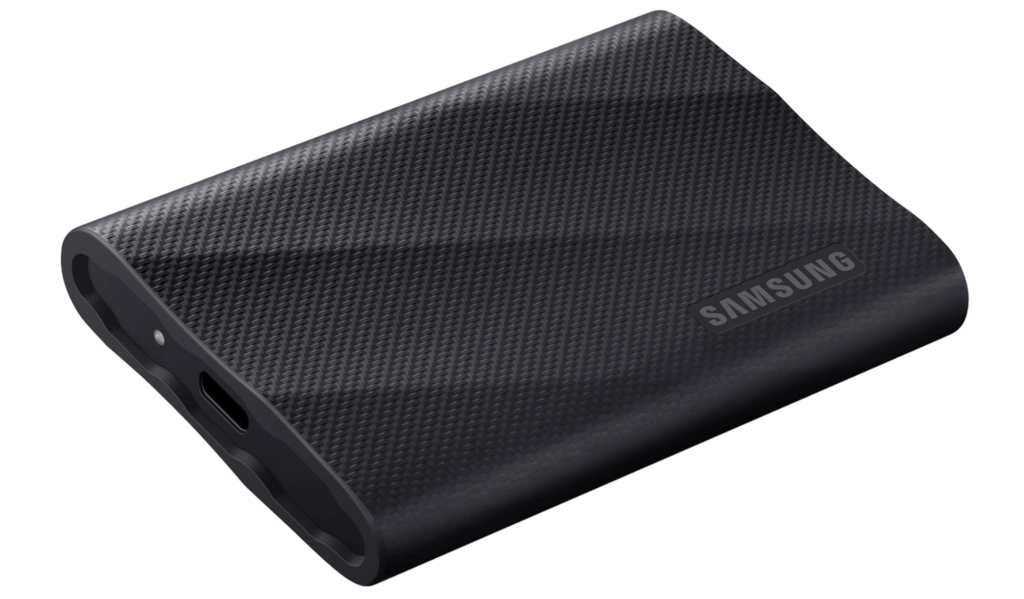

If you’ve read our previous article on repairing the Master Boot Record (MBR), you already know how to fix a corrupted MBR on your internal drive using Windows tools. However, what if the drive you need to repair the MBR of an External Hard Drive that won’t boot or isn’t recognized properly?
Unlike an internal drive, an external hard drive can be connected to another working computer, allowing you to repair its MBR without needing Windows installation media or bootable recovery tools. In this guide, we’ll walk you through the process of fixing the MBR of an external hard drive using another computer’s Command Prompt (CMD)—a straightforward method that helps restore access to your drive without reinstalling Windows.
Let’s dive in and get your external hard drive working again!
To repair the MBR of an external hard drive using another computer, follow these steps:
- Connect the External Hard Drive:
- Attach the external hard drive to a functioning Windows computer.
- Open Command Prompt with Administrative Privileges:
- Press
Win + Xand select “Command Prompt (Admin)” or “Windows PowerShell (Admin)”. Also Hit the Winkey and the letter R to open Run box, then type CMD and hit CTRL SHIFT ENTER to open as admin. See more run commands for windows that also use keyboard shortcuts.
- Press
- Identify the External Drive’s Letter:
- Open “Disk Management” (
diskmgmt.msc) to determine the drive letter assigned to the external hard drive.
- Open “Disk Management” (
- Use
bootsectto Repair the MBR:- In Command Prompt, execute the following command, replacing
X:with the external drive’s letter:bootsect /nt60 X: /mbr - This command updates the volume boot code and rewrites the MBR on the specified drive.
- In Command Prompt, execute the following command, replacing
- Safely Eject the External Drive:
- After the process completes, safely remove the external hard drive and reconnect it to the original system to verify functionality.
Alternative Method Using Third-Party Software:
Tools like AOMEI Partition Assistant can simplify the MBR repair process:
- Install AOMEI Partition Assistant:
- Download and install the software on a working Windows computer.
- Launch the Application:
- Open AOMEI Partition Assistant and ensure the external hard drive is connected.
- Rebuild MBR:
- Right-click on the external drive and select “Rebuild MBR”.
- Apply Changes:
- Click “Apply” to execute the pending operations.
This method provides a user-friendly interface for repairing the MBR without using command-line tools.
1. The Computer Recognizes the Drive but Can’t Access It
Possible errors:
- “You need to format the disk before you can use it”
- Drive appears in Disk Management but not in File Explorer
- Corrupt MBR or partition table
Fix:
- Use
chkdsk X: /f /r(replaceXwith the drive letter) in Command Prompt. - Rebuild the MBR using
bootrec /fixmbr. - Assign a new drive letter in Disk Management (
diskmgmt.msc).
2. The Computer Detects the Drive but Shows as RAW or Unallocated
Possible errors:
- Disk shows as “RAW” or “Unallocated” in Disk Management
- Drive letter missing
Fix:
- Recover partitions using
TestDiskor third-party tools like EaseUS. - If no important data is on it, format the drive (
NTFSorexFAT).
3. The Computer Recognizes the Drive in BIOS but Not in Windows
Possible errors:
- Drive shows in BIOS but is missing in Windows
- Drive is listed as “Unknown” in Device Manager
Fix:
- Open Device Manager (
devmgmt.msc) → Look under Disk Drives - Right-click the drive and select Update Driver.
- Try
diskpartin Command Prompt:diskpart list disk select disk X (replace X with your drive number) online diskSee below for detailed instructions on Diskpart.
4. The External Drive Does Not Show in BIOS or Windows
Possible issues:
- Physical failure (dead drive, faulty cable, or bad power supply)
- Firmware corruption
- Severe bad sectors
Fix:
- Try another USB/SATA port or cable.
- Check if the drive spins up (for HDDs).
- Use a different PC to test.
- If BIOS doesn’t detect it, it may need professional recovery.
5. The External Hard Drive Is Not Recognized at All – How to Fix It
If your external hard drive is not showing up in File Explorer or Disk Management, it might have connection issues, driver problems, or a corrupted MBR. Follow these steps to diagnose and fix the issue.
Possible Errors:
- “USB Device Not Recognized”
- Drive does not appear in File Explorer or Disk Management (
diskmgmt.msc) - No response when plugging in the drive (no sounds, lights, or vibrations)
Step-by-Step Fix
1. Change USB Cables & Ports
- Try using a different USB port (preferably on the back of a desktop PC).
- Use a different USB cable (especially if the current one is damaged).
- If your external drive has a power adapter, ensure it’s plugged in properly.
2. Check If Windows Detects the Drive Using Diskpart
If the external hard drive is not visible in File Explorer or Disk Management, check if Windows still recognizes it using Diskpart, a command-line tool for managing drives.
How to Use Diskpart:
- Open Command Prompt (Admin):
- Press
Win + Xand select Command Prompt (Admin) or Windows Terminal (Admin).
- Press
- Launch Diskpart:
- Type the following command and press
Enter:diskpart
- Type the following command and press
- List Available Disks:
- Once inside Diskpart, type:
list disk - This will display all connected drives, including internal and external ones.
- If your external drive appears in the list, it means Windows detects it, but it may need formatting, a new drive letter, or MBR repair.
- Once inside Diskpart, type:
- Select the External Drive (If Found):
- Identify the disk number for your external drive (e.g.,
Disk 2). - Type the following command (replace
Xwith the disk number):select disk X - To check if the disk is online, type:
online disk - If the disk is offline, this command should make it visible in Disk Management.
- Identify the disk number for your external drive (e.g.,
- Assign a Drive Letter (If Needed):
- Type:
assign letter=E - Replace
Ewith an available drive letter.
- Type:
3. Check Disk Management (diskmgmt.msc)
- Press
Win + R, type diskmgmt.msc, and press Enter. - If the drive appears as RAW or Unallocated, you may need to format it:
- Right-click the disk → Create New Simple Volume → Follow the Wizard.
4. Verify Power Supply (For Externally Powered Drives)
- If your external HDD requires an external power source, make sure it’s properly plugged in.
- Try a different power adapter or outlet.
If Your Drive Still Isn’t Recognized
If none of the above steps work:
- Try the external hard drive on another computer.
- Check Device Manager (
devmgmt.msc) → Expand Disk Drives → Look for Unknown Devices and update drivers. - If the disk doesn’t show up in Diskpart or Device Manager, the drive might have hardware failure and require professional recovery.
Final Thoughts
If the drive is detected in Diskpart, you may need to initialize it, assign a letter, or rebuild the MBR.
If the drive appears anywhere (BIOS, Disk Management, or Device Manager), it can often be fixed using software tools. If it’s completely undetectable, hardware failure is likely.
I have prepared a downloadable pdf file with all of these instructions and extras for you to download to your computer.

