
Accidentally closing a tab or a full window in Chrome can feel like a disaster—especially if you were in the middle of something important. Whether it was a work document, a YouTube playlist, or 17 research tabs, losing them all at once is frustrating.
Fortunately, Google Chrome offers several easy ways to restore recently closed tabs—and in most cases, you can get everything back with just a couple of clicks or a simple keyboard shortcut.
In this guide, you’ll learn how to recover closed tabs in Chrome using different built-in methods. You’ll also find troubleshooting steps in case the usual techniques don’t work.
Let’s jump into it.
Method 1: Restore Closed Tabs Using a Chrome Shortcut
When you accidentally close a tab or window, the quickest and easiest way to restore it is with a simple keyboard shortcut. This method works immediately after closing tabs, and it also helps if you close an entire window by mistake.
Many Chrome users aren’t aware of this built-in feature, but it’s a huge time-saver once you get used to it.
Steps:
- Open Google Chrome.
- Press
Ctrl + Shift + Ton Windows orCmd + Shift + Ton macOS. - Chrome will reopen your most recently closed tab or window.
- Press the shortcut multiple times to restore multiple tabs in reverse order.
This shortcut is especially useful when you’ve closed multiple tabs in rapid succession. Each press brings back one tab at a time in the order they were closed.
Method 2: Use the Chrome Menu and History to Reopen Tabs
If keyboard shortcuts aren’t your thing—or if you’ve closed your browser and reopened it—then the Chrome menu gives you another way to recover closed tabs.
This method is ideal for people who want a more visual way to reopen previously closed pages, and it works even after you’ve restarted Chrome.
Steps:
- Open Google Chrome.
- Click the three vertical dots (menu) in the top-right corner.
- Hover over the History option.
- Look under “Recently Closed” for a list of tabs or windows you closed.
- Click on a tab to open it individually, or click “Restore Window” to bring back an entire session.
This option also shows the keyboard shortcut (Ctrl + Shift + T) next to the “Restore Window” option—helping you memorize it over time.
Method 3: Restore Tabs Using Chrome’s Tab Search Arrow
Chrome includes a small feature in the interface that many people overlook: the tab search arrow. This arrow gives you quick access to all open tabs and recently closed ones, making it easy to reopen them without navigating to the History section.
This method is best when you only want to recover a specific tab instead of an entire window.
Steps:
- Look for a small downward-facing arrow in the top-right corner of Chrome. (It may appear on the left or right depending on your setup.)
- Click on the arrow to open the tab search menu.
- Scroll through your currently open tabs and recently closed tabs.
- Click on any tab you want to reopen.
Note: This feature only restores tabs one at a time, so it’s not ideal if you’re trying to bring back a full session.
Method 4: Right-Click the Tab Bar to Reopen Closed Window
There’s also a lesser-known trick: right-clicking on the tab bar can let you reopen a recently closed window.
This option is perfect when you’ve closed an entire Chrome window and didn’t have Chrome set to reopen it automatically on startup.
Steps:
- Open Google Chrome.
- Right-click an empty space on the tab bar (next to your open tabs).
- Click “Reopen Closed Window.”
Chrome will instantly restore your most recently closed window, including all the tabs that were open in it.
Method 5: Restore Tabs from a Different Google Account
If you’re signed into multiple Google accounts in Chrome, your closed tabs may be linked to a different profile than the one currently active.
In that case, switching to the correct Google profile can bring your tabs back.
Steps:
- Open Chrome and click your Google profile icon in the top-right corner.
- Choose the Google account that was used in the session where the tabs were lost.
- Once switched, go to:
- Menu (three dots) → History
- Look for “Recently Closed” and click “Restore Window”
If you’re not signed into the correct account, Chrome won’t display the tabs you’re looking for—even though they still exist.
Troubleshooting: What to Do if Closed Tabs Won’t Restore
Sometimes, even after trying all the methods above, you may not be able to restore your closed tabs. Here’s what to check:
1. Don’t Delay
If you close Chrome and wait too long, your session may be overwritten—especially if you open new tabs or restart your computer.
Tip: Try restoring tabs immediately after closing Chrome.
2. Check the Right Google Account
If you use multiple Chrome profiles or accounts, your tabs may be tied to a different one.
Always verify you’re signed into the same Google account you used before.
3. Use Chrome History
Even if Chrome doesn’t show the tabs under “Recently Closed,” you can still open them individually from your full history.
- Go to Menu → History → History
- Search or scroll for the tabs you want to reopen.
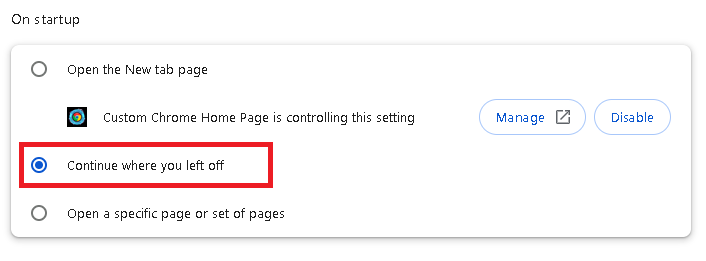
4. Enable “Continue Where You Left Off”
To prevent losing tabs in the future:
- Go to Settings → On Startup
- Choose “Continue where you left off”
This tells Chrome to reopen your previous session every time you launch it.
Wrap-Up: Restoring Chrome Tabs Is Easy When You Know How
Whether it’s using Ctrl + Shift + T, the Chrome history menu, or switching profiles, you now have multiple ways to recover recently closed tabs in Chrome.
Remember: act quickly, and you’ll likely get all your work back without missing a beat.
Want more tutorials like this? Explore our other posts on browser shortcuts, Google account recovery, and DIY computer repair.