
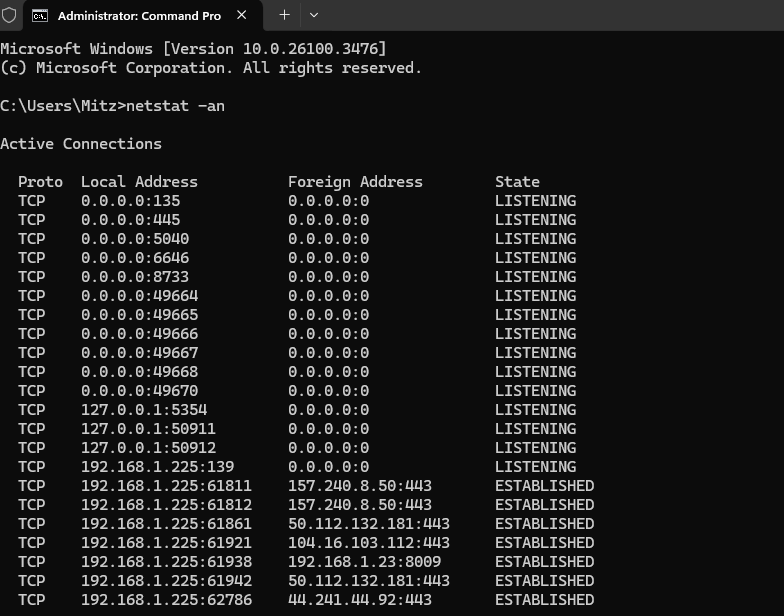

If your computer is running slow, using too much internet bandwidth, or behaving unusually, it may have unwanted network connections running in the background. These connections could be from legitimate applications or suspicious programs that pose a security risk.
One of the most powerful built-in Windows tools, (besides The network troubleshooting wizard) for monitoring and managing network connections is Netstat (Network Statistics). In this guide, you will learn:
- How to use Netstat to check active network connections
- What each connection means and how to identify suspicious activity
- How to block unwanted connections and protect your system
Step 1: How to Run Netstat in Windows
To check your network activity using Netstat, follow these steps:
- Press
Win + R, typecmd, and hit Enter. - In the Command Prompt window, type:
netstat -an - Press Enter, and a list of active network connections will appear.
This command shows all open ports, active connections, and their status.
Step 2: Understanding Netstat Output
The Netstat output consists of several columns:
- Proto (Protocol) – Indicates if the connection is TCP (reliable, connection-based) or UDP (faster, connectionless).
- Local Address – The IP address and port number on your computer.
- Foreign Address – The remote server or device your computer is connected to.
- State – The status of the connection, showing whether it is active, waiting, or closed.
Step 3: What Do the Connection States Mean?
Normal States
- LISTENING – The port is open and waiting for connections.
- ESTABLISHED – A live, active connection exists between your computer and another device/server.
- TIME_WAIT – The connection has ended and is waiting for final cleanup.
Suspicious States
- CLOSE_WAIT – The remote server has closed the connection, but your computer is still keeping it open. If there are many CLOSE_WAIT connections, an application might not be closing connections properly, which can slow down your system.
- UNKNOWN FOREIGN ADDRESS – If you see an unknown foreign IP address, it might be a malicious or unwanted connection.
Step 4: Key Observations in Your Output
Listening Services (Open Ports)
Open ports indicate programs waiting for connections from external sources.
| Local Port | Purpose |
|---|---|
| 135 | RPC (Remote Procedure Call) – Used for system processes |
| 445 | SMB (Server Message Block) – Used for file sharing (can be a security risk!) |
| 8733 | Likely a local web service or API running |
| 49664-49670 | Dynamic Windows ports used by system services |
| 5353 | Multicast DNS (mDNS) – Used for device discovery on networks |
Security Tips:
- If you don’t use network sharing, disable SMB (445).
- If you see unknown services listening on ports, investigate further with:
netstat -bThis command will show which process is using each port.
Step 5: Checking Active Internet Connections
These connections indicate live network activity between your computer and external servers.
| Local Port | Remote Address | Service |
|---|---|---|
| 61811, 61812, 61927 | 157.240.8.50:443 | Facebook/Meta servers |
| 61921, 61942 | 50.112.132.181:443 | Amazon AWS (Could be a cloud app, service, or VPN) |
| 61938 | 192.168.1.23:8009 | Local network device (Chromecast/TV/IoT device) |
| 61926, 61932, 61935 | 2a03:2880:f019:111:face:b00c:0:2:443 | Facebook/Meta IPv6 |
What’s Normal?
- Connections to Facebook, Google, Amazon AWS are usually safe.
- Local traffic within 192.168.x.x (home network) is generally fine.
- Windows Update, DNS, and NTP connections are normal system functions.
What’s Suspicious?
- A high number of unknown active connections
- Connections to IP addresses in countries you don’t recognize
- A local IP unexpectedly sending data to the internet
To check which process is making a connection, use:
netstat -ano
Then match the PID (Process ID) in Task Manager (Ctrl + Shift + Esc > Details Tab).
Step 6: How to Identify an Unknown IP Address
If you see an unknown foreign address, you can look it up using the nslookup command.
Check Who Owns an IP Address
To check who owns an external IP address, use:
nslookup [IP address]
For example:
nslookup 157.240.8.50
This will tell you if the IP belongs to a legitimate company like Google, Facebook, or Amazon, or if it’s suspicious.
If an IP is unknown, search it online or use services like:
- whois.domaintools.com
- ipinfo.io
If an IP address is suspicious, block it using the firewall (see Step 7).
Step 7: How to Stop Unwanted Connections
Disable Unnecessary Services
If you find unnecessary open ports, disable the associated services:
1. Stop File Sharing (Port 445, SMB Protocol) See how to block Port 445.
sc stop lanmanserver
sc config lanmanserver start= disabled
This prevents hackers from accessing your shared files.
2. Disable Remote Assistance (Port 135, RPC Protocol)
sc stop RpcSs
sc config RpcSs start= disabled
This prevents remote hacking attempts.
3. Disable Windows Search Indexing (Port 5000, 5040, 8733, 6646)
sc stop WSearch
sc config WSearch start= disabled
This frees up system resources and stops unnecessary internet usage.
Block Suspicious IP Addresses
If a malicious IP address is constantly trying to connect, block it using Windows Firewall:
netsh advfirewall firewall add rule name="Block Malicious IP" dir=out action=block remoteip=[IP address]
Replace [IP address] with the actual address you want to block.
Step 8: Monitor Your Network in Real-Time
For real-time tracking of network activity, use:
netstat -an 5
This refreshes every 5 seconds, allowing you to track connections as they happen.
For a detailed network log, use:
netstat -abf 10 > networklog.txt
This logs all active connections to a file called networklog.txt, updating every 10 seconds.
Video: How to use netstat command in Windows
Final Thoughts
By using Netstat, you can:
Identify which programs are using your network
Detect suspicious connections from unknown sources
Stop unwanted network activity and block potential threats
If your PC is slow or acting strangely, check your active network connections using netstat -an. This will help you find hidden internet activity, close unnecessary connections, and secure your computer.


