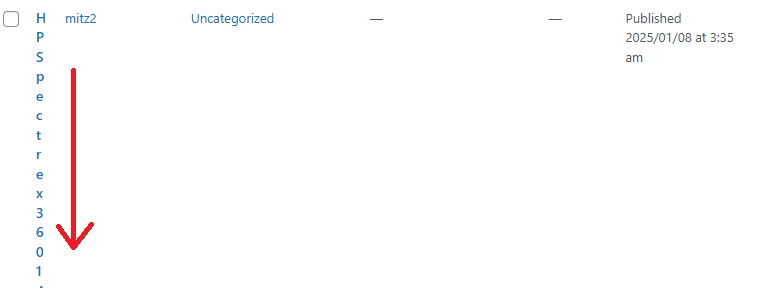

Stop Your SEO Plugin from Messing Up Post Titles in WordPress – The Ultimate Fix
Are your post titles in WordPress appearing incorrectly due to an SEO plugin? Plugins like Yoast SEO, Rank Math, and All in One SEO sometimes override your post titles, causing formatting issues in the backend. This guide will show you how to fix the issue step by step.
Why is Your SEO Plugin Changing Post Titles?
SEO plugins modify titles for search engine optimization but sometimes apply settings that: Add site branding to every post title. Override manually written titles. Affect how post titles appear in the WordPress backend. Follow these steps to regain full control over your titles.
Step 1: Adjust SEO Plugin Settings
For Yoast SEO: Go to SEO → Search Appearance in the WordPress Dashboard. Click the Content Types tab. Locate the Post Titles field. Remove extra formatting like %sitename% or %sep%. Ensure only %title% remains. Click Save Changes and refresh your backend.
For Rank Math SEO: Go to Rank Math → Titles & Meta. Select the Posts tab. Check the Post Title Format field. Remove any unnecessary modifications. Click Save Changes.
For All in One SEO (AIOSEO): Navigate to All in One SEO → Search Appearance. Find the Post Title Format field. Delete unwanted title modifications. Save settings and refresh your dashboard.
Step 2: Disable SEO Plugin Filters (If Titles Are Still Wrong)
If settings don’t fix the issue, the plugin might be forcing title filters. Disable them by adding the following code to your theme’s functions.php file:
add_filter('wp_title', function($title) { return get_the_title(); }, 10, 1);OR
remove_filter('wp_title', 'your_seo_plugin_function');Replace your_seo_plugin_function with the function used by your SEO plugin. Check the plugin documentation for details.
Step 3: Test If Your SEO Plugin Is Causing the Issue
Go to WordPress Dashboard → Plugins. Deactivate the SEO plugin. Check if post titles appear correctly in the backend. If they do, the issue was caused by your SEO plugin. Reactivate the plugin and tweak settings as per Step 1.
Step 4: Consider Switching to a Lightweight SEO Plugin
If issues persist, consider switching to an alternative SEO plugin that doesn’t aggressively modify titles.
SEO Framework – Lightweight and doesn’t override titles.
Slim SEO – Minimalist, fast, and doesn’t change post titles.
How to Install a New SEO Plugin: Go to WordPress Dashboard → Plugins → Add New. Search for SEO Framework or Slim SEO. Click Install Now and then Activate. Configure the new plugin and ensure it doesn’t modify titles.
Step 5: Clear WordPress Cache and Refresh Settings
Sometimes, cache plugins prevent changes from reflecting in your backend. To ensure your modifications take effect:
Clear WordPress cache using WP Rocket, W3 Total Cache, or WP Super Cache.
Flush permalinks by going to Settings → Permalinks and clicking Save Changes. Hard refresh your browser by pressing Ctrl + Shift + R on Windows or Cmd + Shift + R on Mac.
Step 6: Adjusting Screen Options for Correct Post Title Display in WordPress
- Log In:
Sign into your WordPress admin dashboard with your credentials. - Navigate to Posts:
In the left-hand menu, click on Posts and then select All Posts. - Access Screen Options:
In the top-right corner of the Posts page, click on the Screen Options button. A panel will slide down displaying various settings. Here you can untick certain options to display on the screen which in turn makes the title fit better. See the screenshot below. I unchecked comments and the author so far and this fixed my problem.
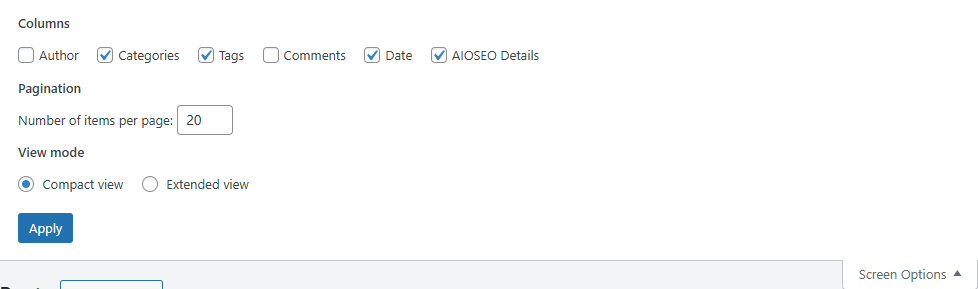
By following these steps, you’ll ensure that your WordPress backend shows your post titles in a clear and organized manner.
Video: How to Fix Vertical Post Titles In WordPress
Final Thoughts
If your SEO plugin is messing up your post titles in WordPress, you now have several ways to fix it. Adjust plugin settings, disable title filters, switch plugins if needed, adjust screen options, and clear the cache.
Did this guide help you? Let us know in the comments!