Windows Update Stuck, Repair Windows Update Errors, Windows Update Reset Guide
If you’ve ever watched Windows Update sit at 0%, crawl to 100% and freeze, or reboot into “Undoing changes”, you already know how frustrating this can be.
What makes it worse is that Windows often looks fine otherwise.
The PC boots. Apps open. Internet works.
So people assume:
“Windows Update is just broken.”
In reality, Windows Update is usually doing its job — it’s just exposing a deeper problem underneath the surface.
This guide explains:
- why Windows Update fails so often
- why the built-in fixes only go so far
- and how to properly reset and repair Windows Update in the correct order
No guesswork. No risky tweaks. Just the method that actually works.
Watch the video below or continue with the post below.
Fix Windows Update Using the Built in Troubleshooter (And Why It’s Limited)
Before touching anything manually, always run the built-in troubleshooter.
How to run the Windows Update troubleshooter
- Open Settings
- Go to System → Troubleshoot → Other troubleshooters
- Run Windows Update
On older versions of Windows:
- Control Panel → Troubleshooting → Fix problems with Windows Update
What the troubleshooter is good at
The troubleshooter can:
- Restart stuck update services
- Fix simple permission issues
- Reset basic update logic
This is why it sometimes appears to “fix” the problem.
Why the troubleshooter is not the full job
What it cannot do:
- Rebuild corrupted update downloads
- Replace damaged update databases
- Repair broken system files
- Fix file system or disk errors
So if updates keep failing after this step, the issue is no longer “just Windows Update.”
It’s the environment Windows Update depends on.
That’s where the real fix starts.
Why Windows Update Breaks So Easily (Plain English)
Windows Update relies on several moving parts working together:
- Background services running correctly
- A local update cache storing downloaded files
- Healthy system files
- A disk that can reliably read and write data
If any one of those fails, updates don’t install cleanly.
Instead, Windows will:
- retry the same update
- throw different error codes
- roll back changes on reboot
That loop is your clue that something underneath needs repair.
The Correct Way to Reset Windows Update (What Actually Fixes It)
This process resets Windows Update properly, instead of just poking at it.
You will need administrator access.
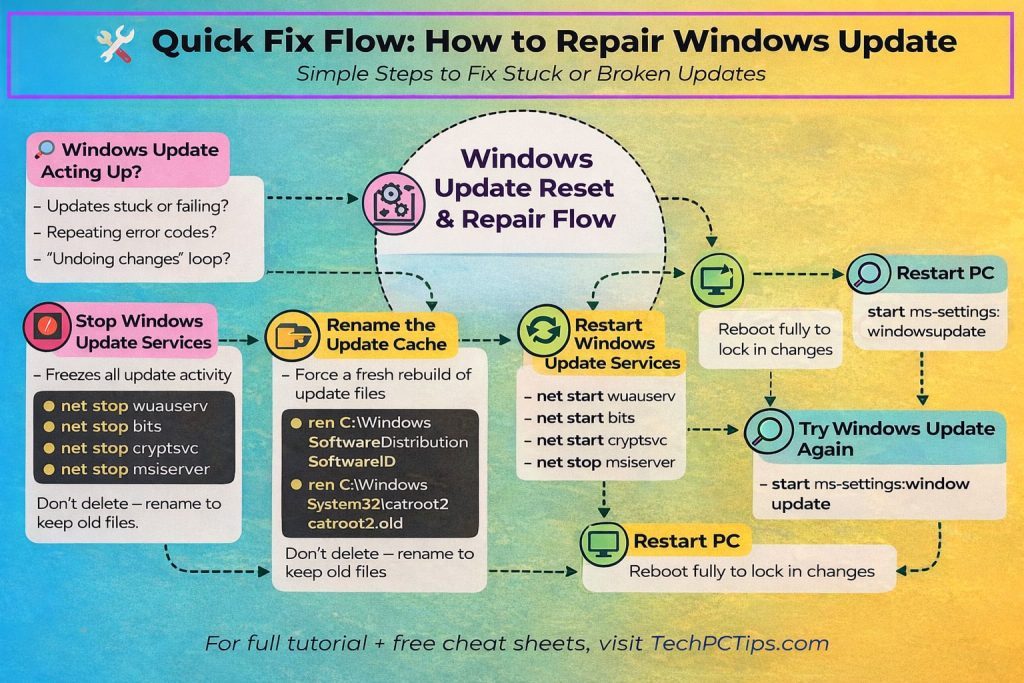
Stop Windows Update Services (Why This Comes First)
Windows locks update files while services are running.
If you don’t stop them, files can’t be fixed or rebuilt.
Open an Administrator Command Prompt
- Press Win + R
- Type
cmd - Press Ctrl + Shift + Enter
- Approve the prompt
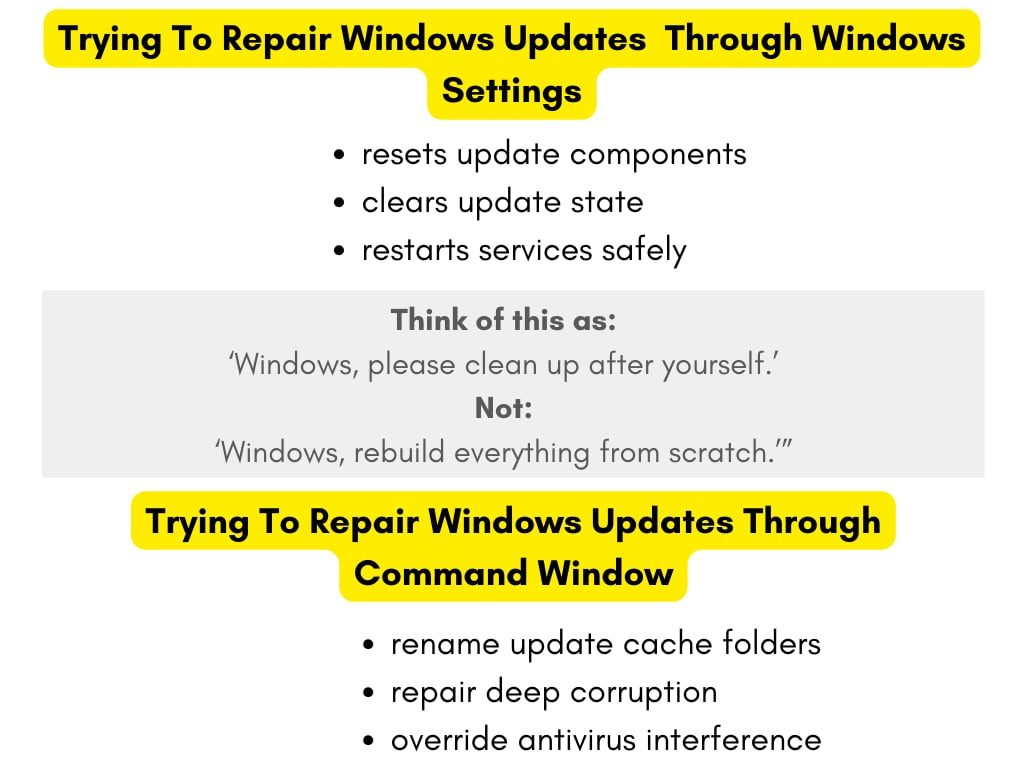
- Also see how to access Windows Updates through CMD Window.
Stop the update services
Run these commands one at a time:
net stop wuauserv
net stop bits
net stop cryptsvc
net stop msiserver
At this point, Windows Update is fully paused and safe to work on.
Rename the Windows Update Cache (The Most Important Step)
This is the step most guides skip — and the reason their fixes don’t last.
What the update cache actually is
Windows stores update files and metadata in local folders.
If those files become corrupted, Windows keeps reusing them — and keeps failing.
Why we rename instead of delete
Renaming:
- forces Windows to create fresh folders
- avoids permission problems
- keeps the old data as a backup
Rename the update folders
Run:
ren C:\Windows\SoftwareDistribution SoftwareDistribution.old
ren C:\Windows\System32\catroot2 catroot2.old
This tells Windows:
“Start over with clean update files.”
Restart Windows Update Services
Now that the old files are out of the way, services can safely restart.
net start wuauserv
net start bits
net start cryptsvc
net start msiserver
Windows Update is now running with a clean slate.
Restart the PC (Why This Matters)
A full restart:
- releases file locks
- applies service changes
- finalises the rebuild of update components
Skipping this step often causes updates to fail again.
Restart the computer fully before continuing.
Try Windows Update Again
After rebooting, open Windows Update:
start ms-settings:windowsupdate
For many systems, updates will now install normally.
If they do — stop here.
You’ve fixed the problem at the update layer.
If Updates Still Fail, the Issue Is Windows — Not Updates
If Windows Update still fails after a full reset, that’s an important signal.
It means:
- Windows system files may be corrupted
- or the Windows image itself is damaged
Now we repair Windows directly.
Run System File Checker (SFC)
System File Checker scans core Windows files and repairs what it can.
If you need more information about the SFC see this post.
sfc /scannow
This can take time. Let it finish.
Restart the PC when it completes.
If SFC reports it fixed files, that alone may restore update functionality.
Run DISM to Repair the Windows Image
If SFC can’t fix everything, DISM repairs the Windows image underneath the system.
See this post for more details on how to use the system file checker and DISM.
DISM /Online /Cleanup-Image /RestoreHealth
This step fixes deeper corruption that blocks updates from installing.
Restart when it finishes.
Why This Order Works (And Random Fixes Don’t)
Each step repairs a deeper layer:
- Troubleshooter → basic logic
- Service reset → stuck processes
- Cache rebuild → corrupted update files
- Restart → locks changes in
- SFC → damaged system files
- DISM → damaged Windows image
Skipping steps leads to repeat failures and confusion.
A Reality Check Most Guides Don’t Mention
Windows Update is not just a downloader.
It’s a stress test.
If updates fail repeatedly, it’s often because:
- the disk has errors
- an SSD is wearing out
- or Windows has accumulated silent corruption
Windows Update just happens to be the first thing that notices.
Final Takeaway
When Windows Update fails, it’s rarely “just an update problem.”
It’s Windows telling you:
“Something underneath me isn’t stable.”
Fix the foundation properly — and updates usually fix themselves.