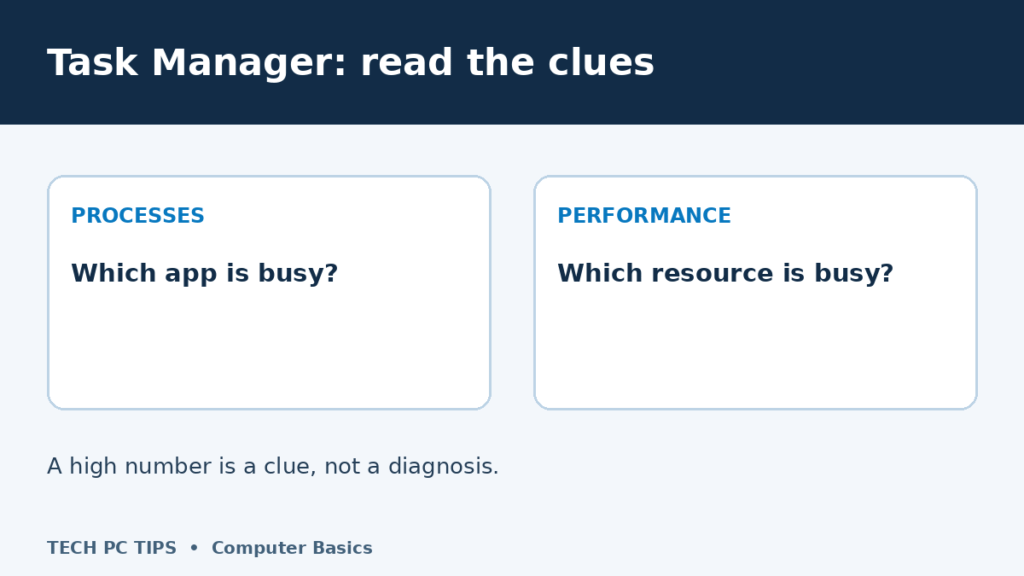

Task Manager is useful when an app freezes or your PC seems unusually busy. It shows what is running and which resources are being used. You do not need to understand every process to get useful clues—and you do not need to start closing everything either.
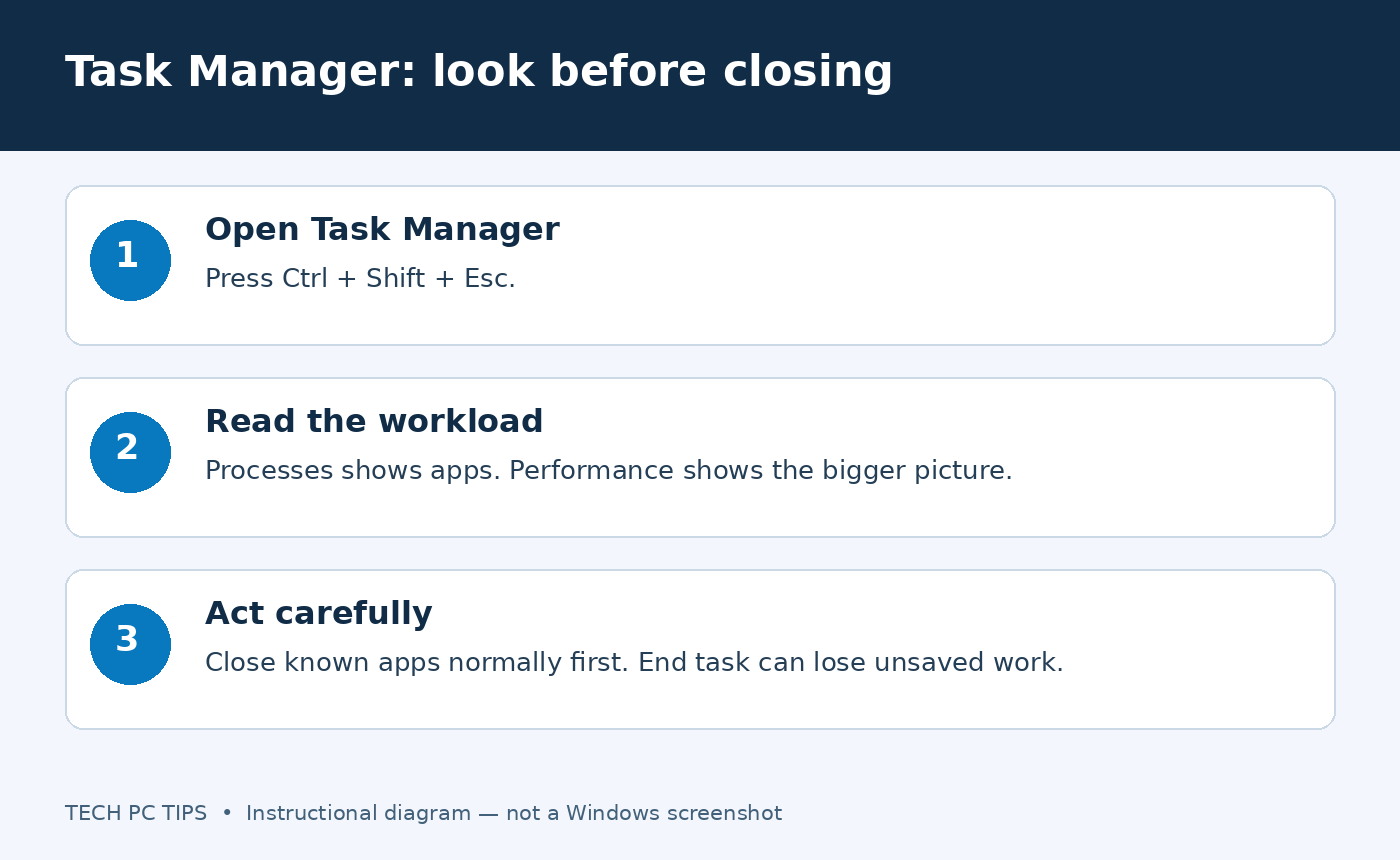
Open Task Manager
Press Ctrl + Shift + Esc. You can also right-click Start and choose Task Manager. In Windows 11, use the navigation down the left side; expand the navigation menu if you only see icons. Older versions can show tabs instead.
Use Processes to find the busy app
Select Processes. Click a column heading such as CPU or Memory to sort the list. If the smallest values appear first, click again. Watch while you repeat the task that feels slow.
- CPU: how much processing work is happening. A video export can legitimately use a lot.
- Memory: working space used by running apps. Many browser tabs and large documents can add up.
- Disk: storage activity. This is different from how much free space remains.
- Network: data traffic. A busy download does not tell you the maximum speed of your internet plan.
A high number is a clue, not a diagnosis. A brief spike as a program opens is normal. Sustained heavy usage at the same time as a slowdown is more useful to investigate. Browser processes may appear in groups because one browser runs several separate tasks.
Use Performance for the overall picture
Select Performance, then choose CPU, Memory, Disk or your network adapter. The graphs help show whether activity stays high or settles down. For storage capacity, open Settings → System → Storage instead.
If you are unsure whether the problem is local or online, compare a saved file with several websites before drawing conclusions. The slow computer guide gives you a practical next checklist.
Close a frozen app carefully
- Give the app a moment, especially if it is saving or opening a large file.
- Try its normal Close button. Save your work in other responsive apps.
- If it remains frozen, select the app you recognise in Processes and choose End task.
- Reopen the app and check whether it offers recovery of your document. Recovery is not guaranteed.
End task can discard unsaved work. Do not end Windows processes, security software or unfamiliar background services just to make the numbers smaller. If the same app freezes repeatedly, check its updates and the exact trigger.
Review Startup apps without uninstalling anything
Select Startup apps. Choose an app you recognise and do not need immediately after signing in, then select Disable. This stops its automatic startup; it does not uninstall it. You can select Enable later. Keep security and essential accessibility tools enabled, and change one optional app at a time.
For removing software completely, use the proper uninstall steps. For regular upkeep, use the maintenance checklist. The Windows 11 tutorial explains more of the everyday controls.
Microsoft’s startup-app guidance covers the available startup controls.


Great explanation, Mitz. I’ve never used some of these because I didn’t know what they were for. Funny how we use computers and only make use of some of the features. Thanks for this.
Yes there are so many things hiding on the computer.. I know where everything is because I have always dissected every new version of windows.. I can’t help it!
Hi Mitz
Nice article. As an IT pro I use the task manager in a daily basis. It is a must for fixing performance issues or virus attack on all Windows computers. In Windows 7 the task manager has been improved with additional features e.g. access to services. Maybe you can do a follow up post on Windows 7 task manager at some point?
Task manager could also help you in case if certain programs or application are frozen your pc to access anything. Moreover, there are several instances of same program are running continuously which makes your pc slower. So, by using task manager you can stop those too.
The problem I have is how to navigate through the list of Applications using only the keyboard when my mouse isn’t working or not present. I have tried lots of things but nothing gets me into the list of applications so that I can move through them (e.g. using the up/down arrows). Any ideas? Thanks
Do you mean a list of devices in the device manager? If you are using the keyboard to navigate then when you are on your device try hitting the enter key to open to see the details.This article might also help navigate http://tips4pc.com/computer_tips_and_tricks/keyboard-shortcuts-to-fill-out-a-form-when-your-mouse-is-not-working.htm