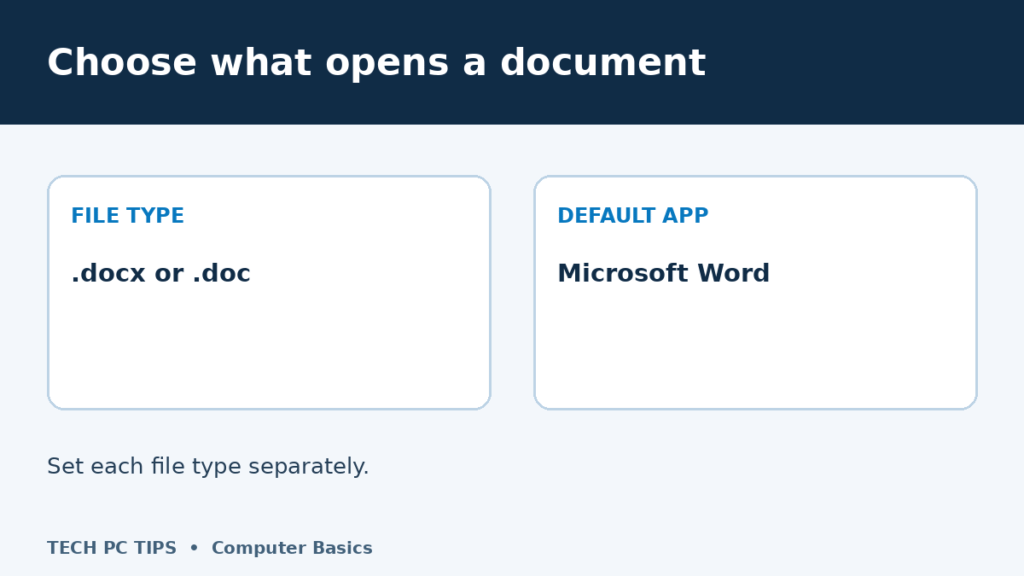

Double-click a Word document and another app takes over? Windows has a default app set for that file type. You can change the association without rewriting the document or removing the other program.
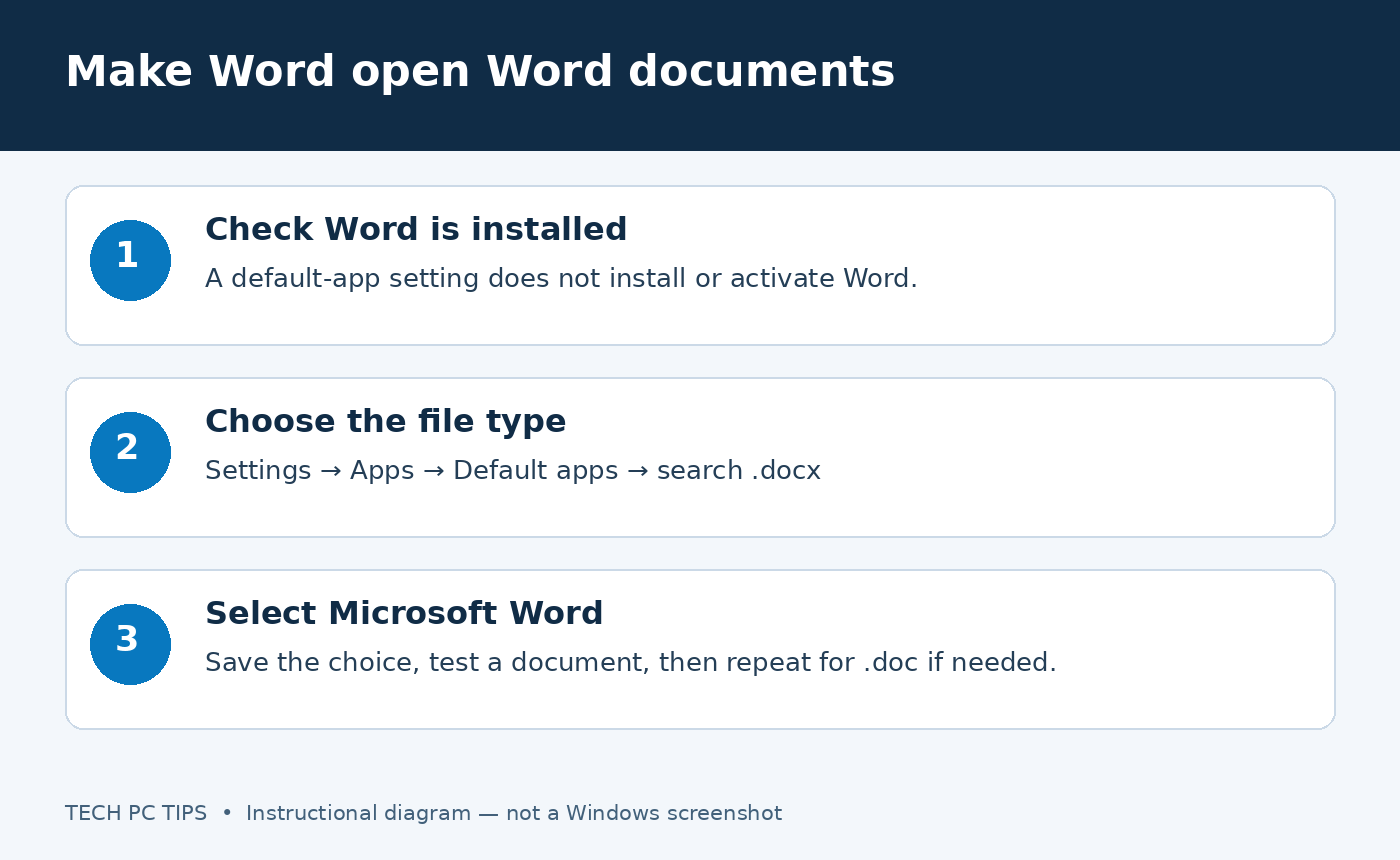
This is a Windows setting. It decides which installed app opens when you double-click a file; it does not decide which app you must use forever.
First, check that Microsoft Word is installed
Open Start, search for Word and launch it. If you only use Word in a web browser, you may not have the desktop app installed. Changing a default does not install Word, provide a licence or fix an activation problem.
If you need to install it, use your Microsoft account’s official Microsoft 365 or Office installation options, according to your licence. Our Windows software installation guide explains the general process.
Set Word as the default for DOCX files
- Open Start → Settings → Apps → Default apps.
- Use the file-type search to look for .docx, including the dot.
- Select the matching file type or its current default app.
- Choose Microsoft Word from the available apps and confirm the choice. The confirmation wording can vary with your Windows release.
- Close Settings and double-click a .docx document you recognise to check the result.
You can also find Word in the app list on the Default apps page and review its file associations. Either route leads to the same idea: choose which app opens a particular type of file.
Change DOC separately if you use older documents
.docx and .doc are different file types. Repeat the process for .doc if older Word documents still open elsewhere. Changing .docx does not automatically set every other document format.
You do not have to make Word the default for PDFs, plain-text files or every format it can open. Choose the app that suits each job. A PDF opening in a PDF reader is not a sign that your Word setting failed.
Try another app once without changing the default
Right-click a document and choose Open with. Select the app you want for that occasion. If Windows offers a one-time choice, use it when you do not want a permanent change. For a lasting association, the Default apps page makes the file type you are changing clearer.
If Word is missing or the change does not stick
- Open Word from Start first. If it will not launch, resolve the app installation or activation problem before adjusting defaults.
- Check the file’s actual extension. A PDF, shortcut or web link is not a DOCX document even if its name includes “Word”.
- Return to Default apps and confirm the exact extension you changed.
- If this is a work or school computer, an organisation’s policy may manage defaults. Ask your IT administrator.
- If Word opens but reports a damaged or unreadable file, that is a separate document problem. Changing the association will not repair its contents.
Do not rename a PDF to .docx to force it into Word; changing a filename extension does not convert the file. Keep a copy before attempting document conversion or repairs. The backup guide helps you protect important files.
You can change your mind later
Go back to the same file type in Default apps and select a different installed app. The association is reversible, and your documents remain where they were. See Windows system settings for more Settings help, or how to uninstall software properly if you actually want to remove an unwanted program.
Reference: Microsoft’s default-app instructions.