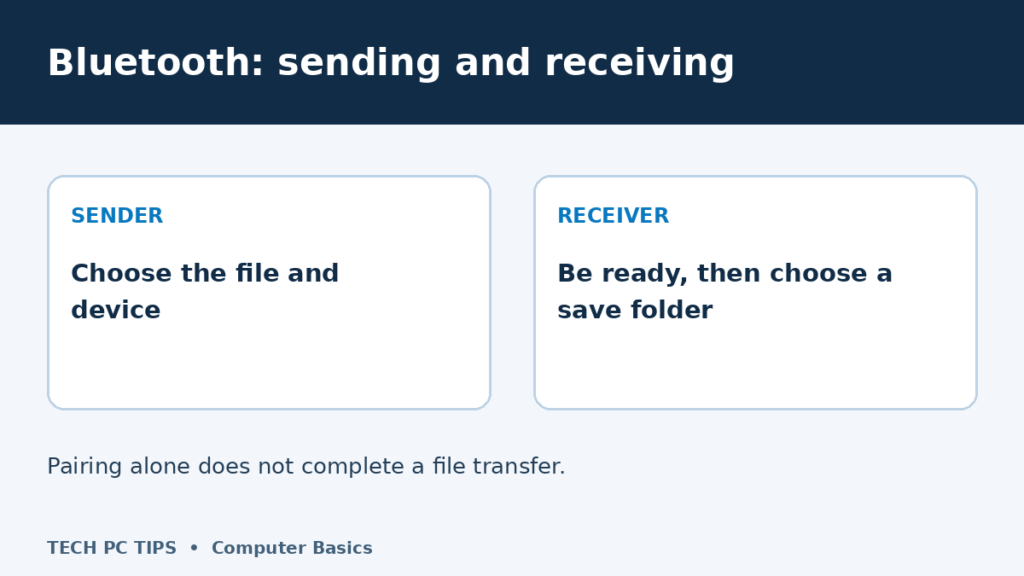

Bluetooth is handy for sending a small file to a nearby device without hunting for a cable. There is one catch: pairing the devices is only the first step. The receiving device also has to support Bluetooth file transfer and be ready to accept the file.
Check that both devices support the job
A Bluetooth connection for headphones, a keyboard or phone calls does not prove that a device can exchange files this way. Check the other device’s sharing options. If it has no Bluetooth file-sharing option, use its supported USB, Wi-Fi or cloud-sharing method instead.
For a Samsung phone, the Samsung-to-computer file transfer guide gives you another route. Bluetooth is better suited to a few small files than a large video collection.
Pair the devices in Windows 11
- Turn on Bluetooth on both devices and keep them nearby. Make the other device discoverable as its instructions require.
- On the PC, open Settings → Bluetooth & devices → Add device → Bluetooth.
- Select the device you recognise. Compare the pairing codes if shown, then confirm on both devices.
If Windows has no Bluetooth switch, check whether the PC has a Bluetooth adapter and the correct driver. Our device driver guide and device recognition checks explain those basics.
Send a file from the PC
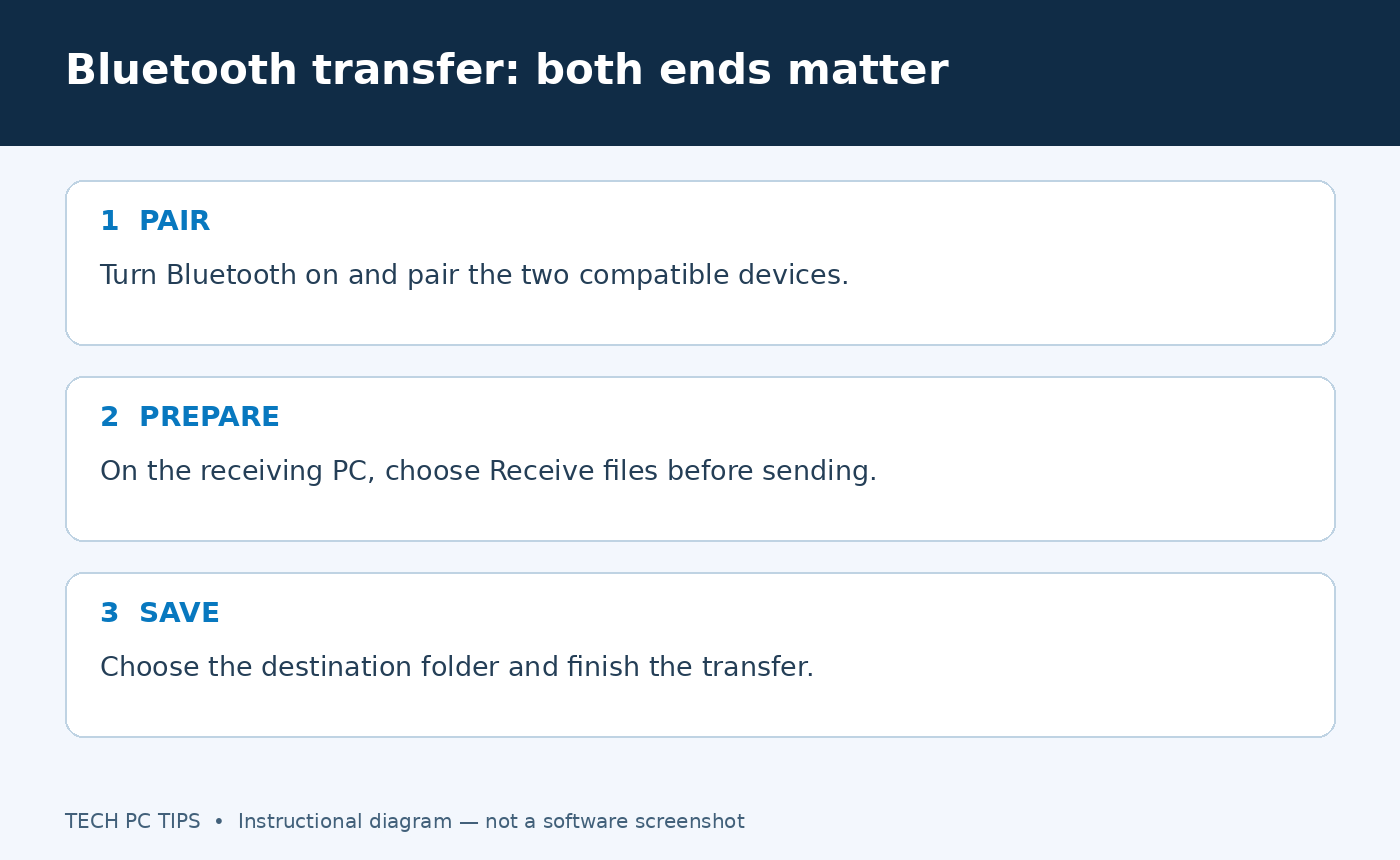
- Make the receiving device ready to accept a Bluetooth file. On another Windows PC, open Receive files first, using the instructions below.
- In Windows 11, open Settings → Bluetooth & devices → Devices. Under Related settings, choose Send or receive files via Bluetooth.
- Choose Send files, select the paired device and browse to the file.
- Start the transfer, accept it on the other device if asked, and wait for confirmation before closing the transfer window.
Receive a file on the PC
- Open the same Send or receive files via Bluetooth window and select Receive files. Leave it waiting for a connection.
- Start sharing the file from the other device using its Bluetooth option.
- When Windows offers to save the received file, check the proposed folder or choose Browse. Select Finish.
- Open the folder you chose and check that the file arrived.
There is no universal “Bluetooth Exchange” folder that every device uses. The destination you choose at the end matters. Use a clearly named folder rather than relying on memory; the file organisation rules help keep transfers findable.
If the transfer fails
Check the receiver is still waiting, both devices remain nearby and the sending device supports that file-transfer method. Try one small, harmless file first. Avoid accepting unexpected transfers from people you do not know.
Reference: Microsoft’s Bluetooth file-transfer instructions.